Free AI Text to Video Generator — From Prompt to Cinematic Scene
Describe the scene and this online Text to Video studio renders a cinematic clip straight from your prompt — no footage, no storyboard, no stock library. It taps Kling, Seedance, and Wan, supports common aspect ratios, and outputs HD results.
Leading Video Models Behind One Prompt
Cinematic scenes, product promos, social clips, storyboard previs — online Text to Video brings the leading models behind one prompt, so you switch engines per shot and export in HD without a watermark.
What Makes Text to Video Stand Out?
What makes the best Text to Video is the small controls that separate a trial render from a production file: language freedom at the prompt box, ratio switching above the preview, and a privacy posture that lets you use it for real work.
Prompt in Your Language
Describe a scene in English, Chinese, Japanese, Spanish, and more — Text to Video interprets your brief directly, so you do not lose nuance translating into English first. Prompt in the language you think in and let it read your words natively.
Every Aspect Ratio in One Control
Switch between 9:16, 1:1, 16:9, and more aspect ratios from one control above the render — no menu diving. The same prompt becomes a vertical short, a square post, or a wide YouTube cut.
Unreleased Concepts Stay Private
AIGenTools does not train its own models on your prompts, uploads, or outputs. Requests are processed by the model providers needed to generate your result, under their API data terms. Delete a project and it is removed from the system without a backup copy, so it stays safe for unreleased concepts.
How to Use Text to Video
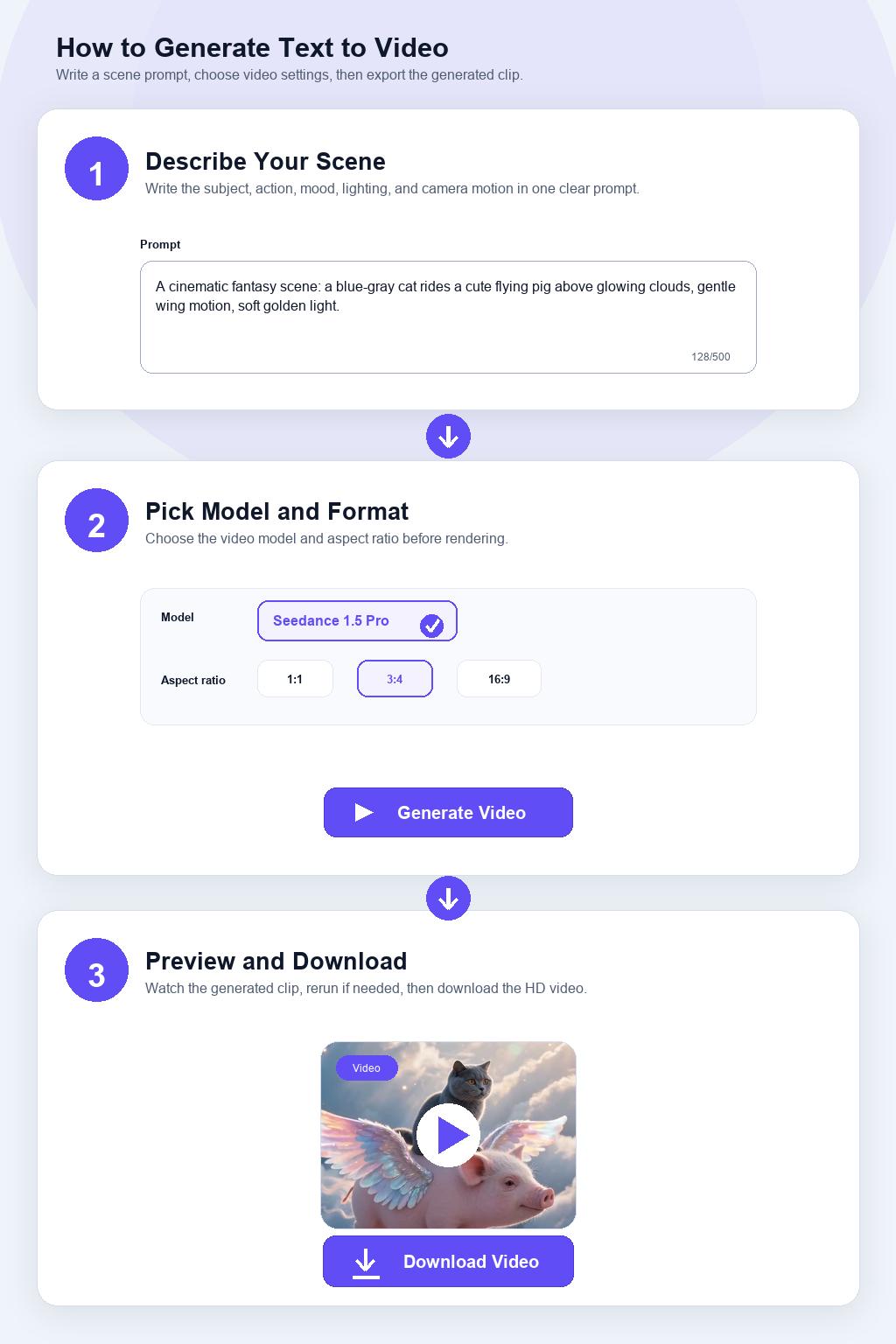
Step 1 Describe Your Scene
Open Text to Video and write a prompt in plain language — subject first, then action, mood, lighting, and camera framing. Concrete nouns and verbs move the render further than flowery adjectives.
Step 2 Pick a Model and Aspect Ratio
Pick the model that fits the shot from the picker above the prompt, then set the aspect ratio on the same panel. Go 9:16 for Reels and Shorts, 16:9 for YouTube and web heros, 1:1 for feeds, or pick another ratio for niche formats.
Step 3 Preview, Tweak, Download the Result
Watch the cinematic clip play back in the preview pane, rerun it with a trimmed prompt if the pacing is off, then download the HD result — no watermark, no install.