Free AI Image to Image — Ghibli, Action Figure & Cinematic Relight
Reimagine and transform photos with AIGenTools. This online Image to Image editor lets you upload a reference and describe how you want it changed — restyle the look, enhance details, swap backgrounds, or rework the composition. Powered by Nano Banana Pro, Seedream 5, GPT Image 2, and Seedream 4.5, it returns HD edits in seconds.
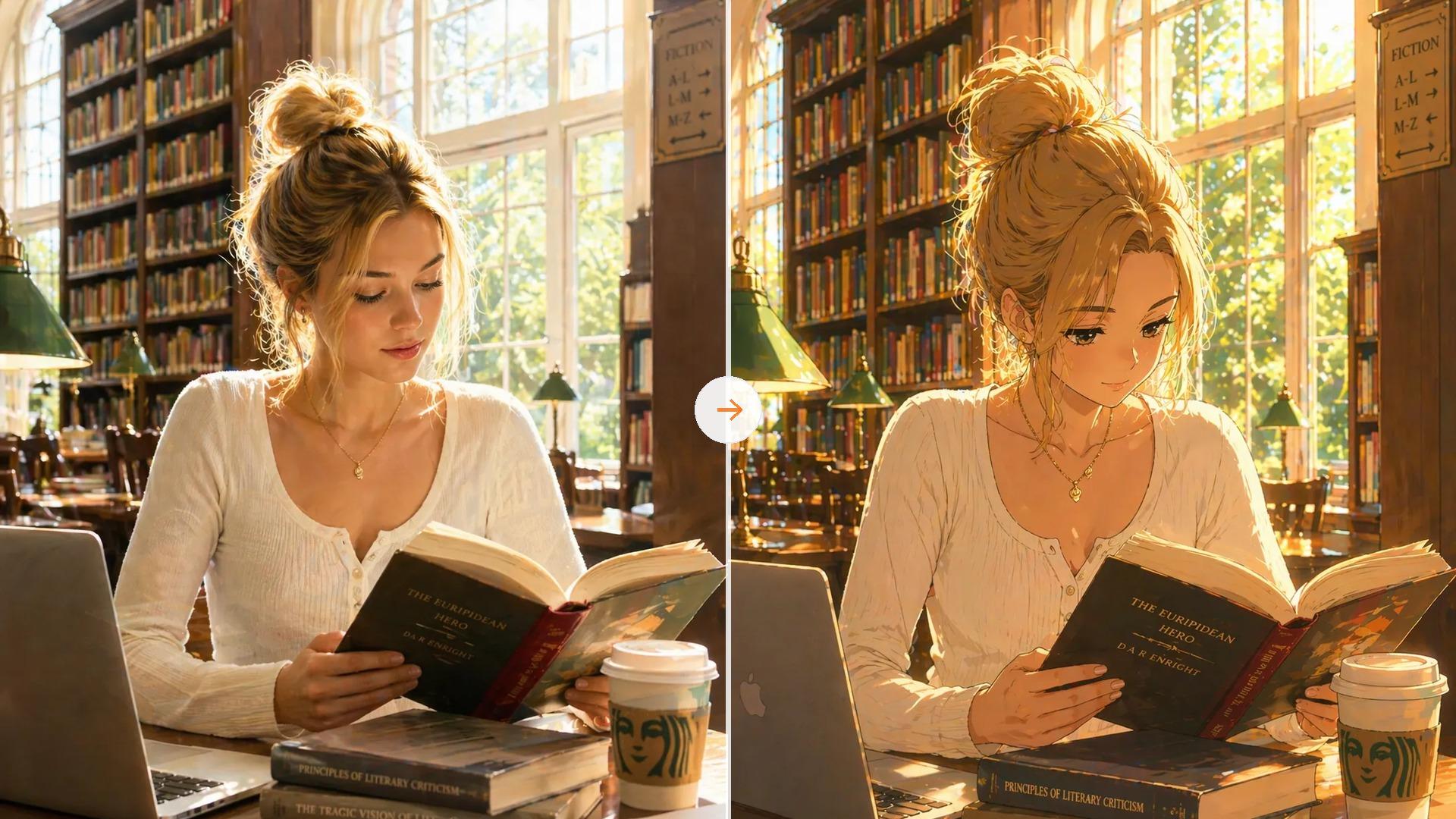
Restyle, Enhance, or Reimagine Photos You Upload
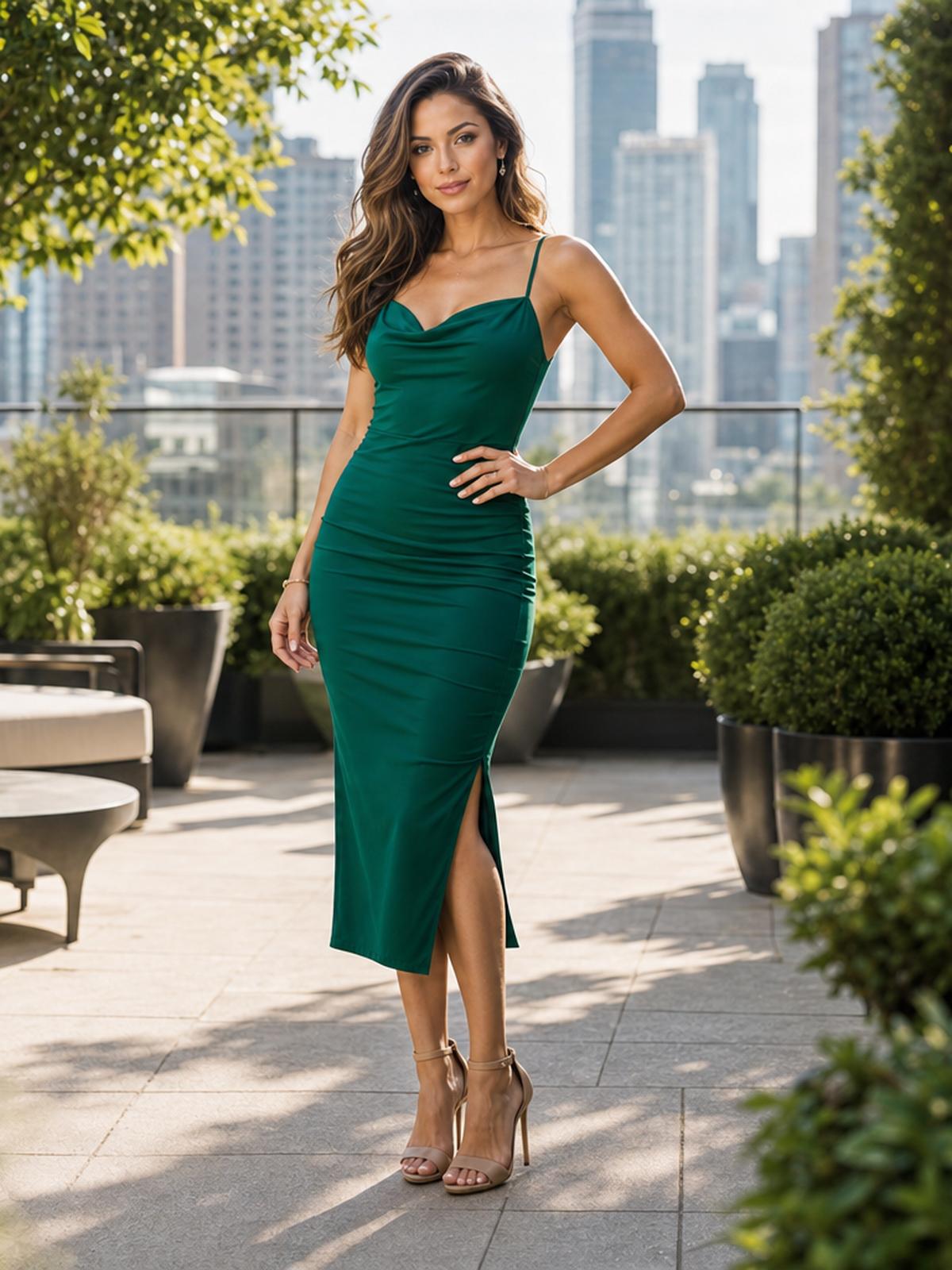
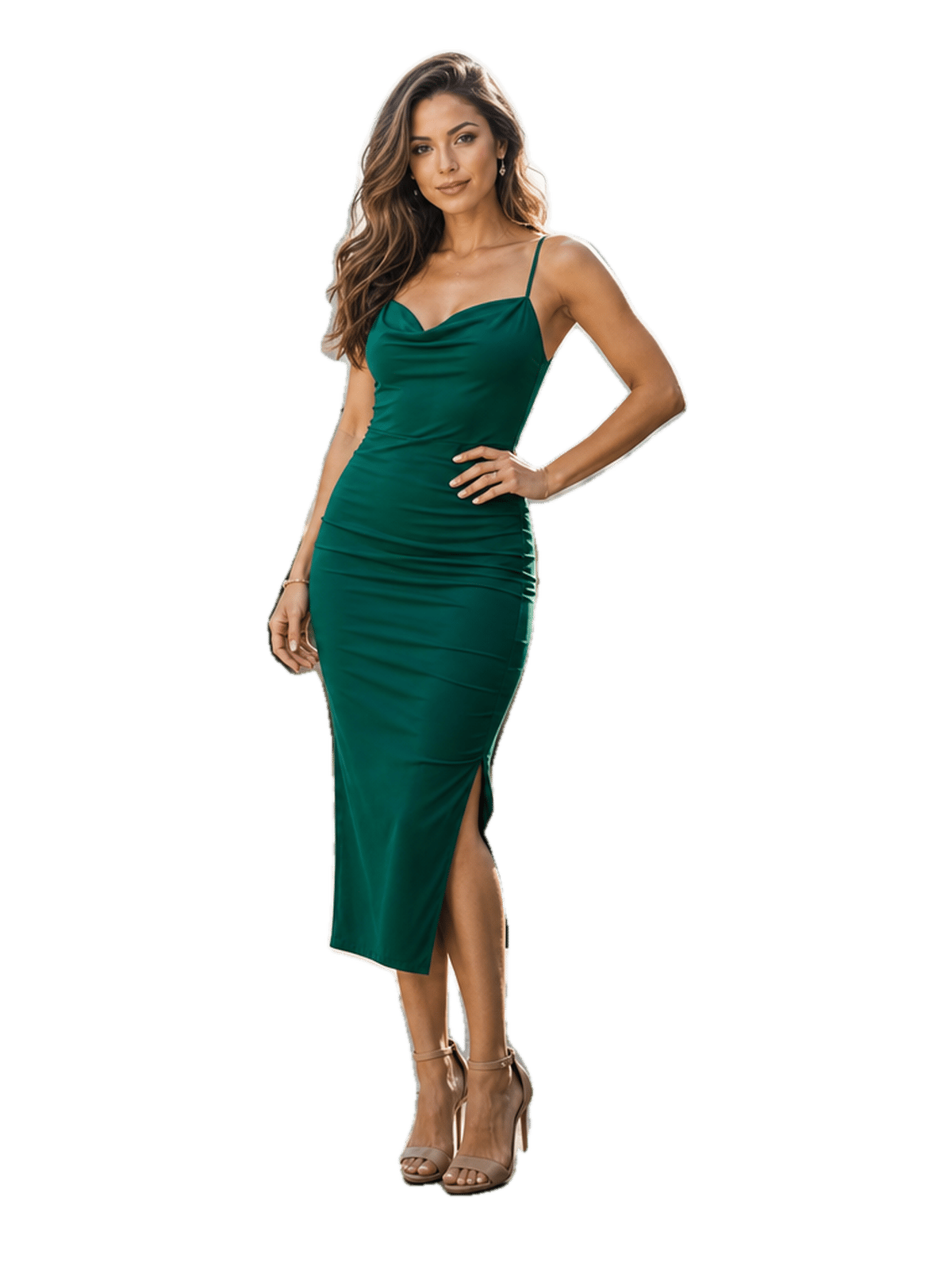
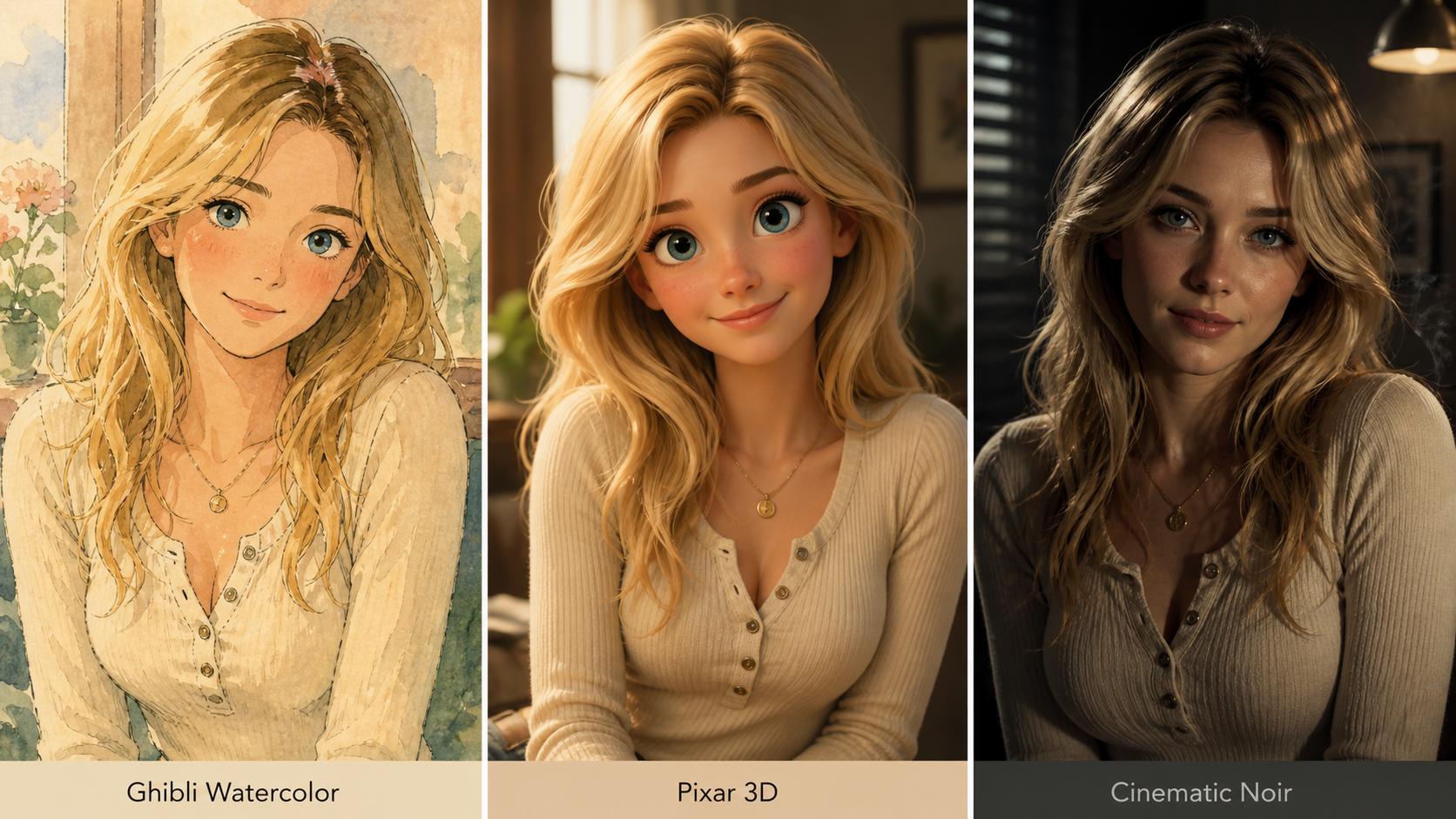
Ghibli-style portraits, action-figure makeovers, cinematic relights, background swaps — AIGenTools' image-to-image studio handles every transformation from one upload, and the subject still looks like the original person, not a generic AI render.
High-Quality Image Output
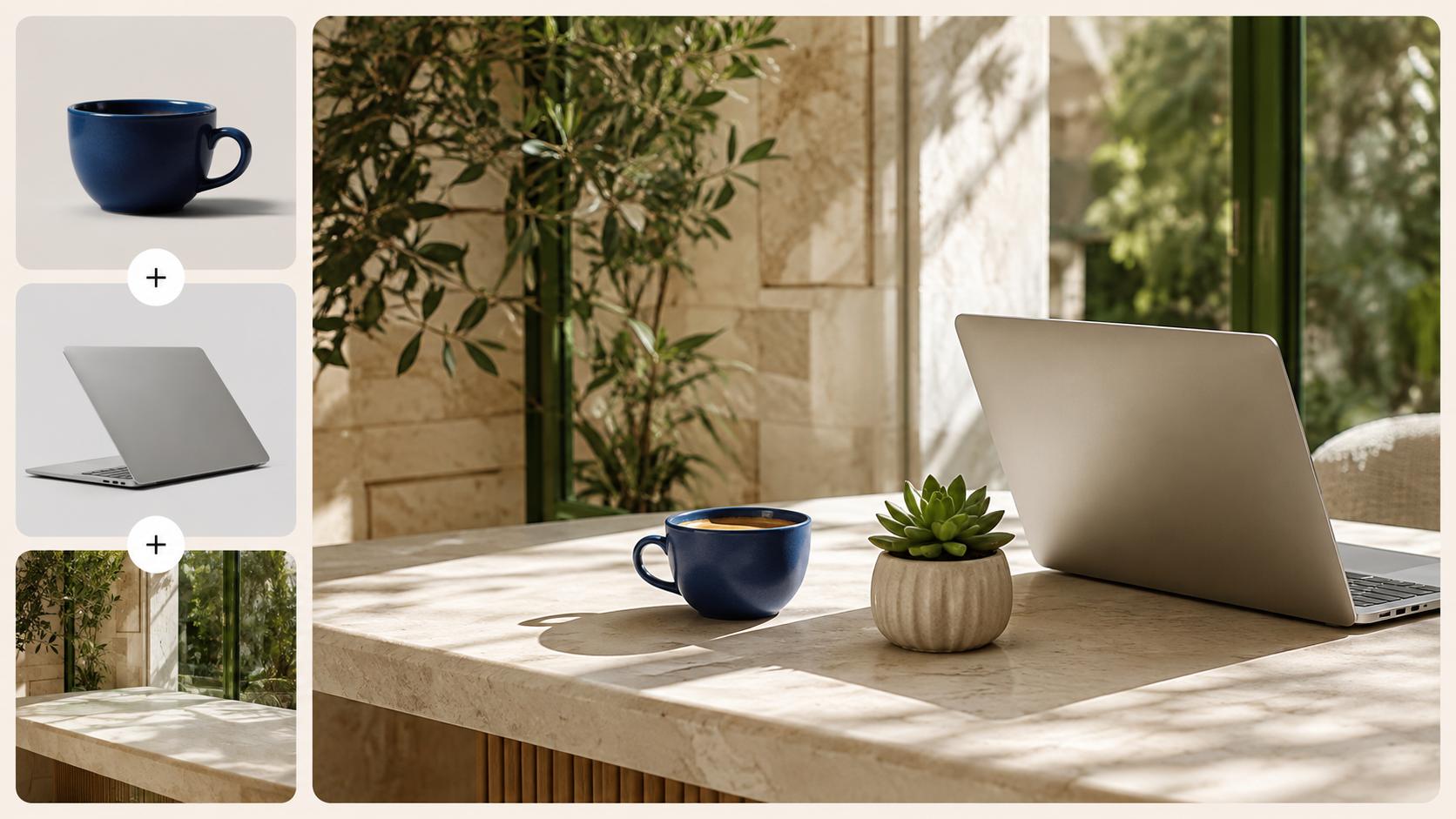
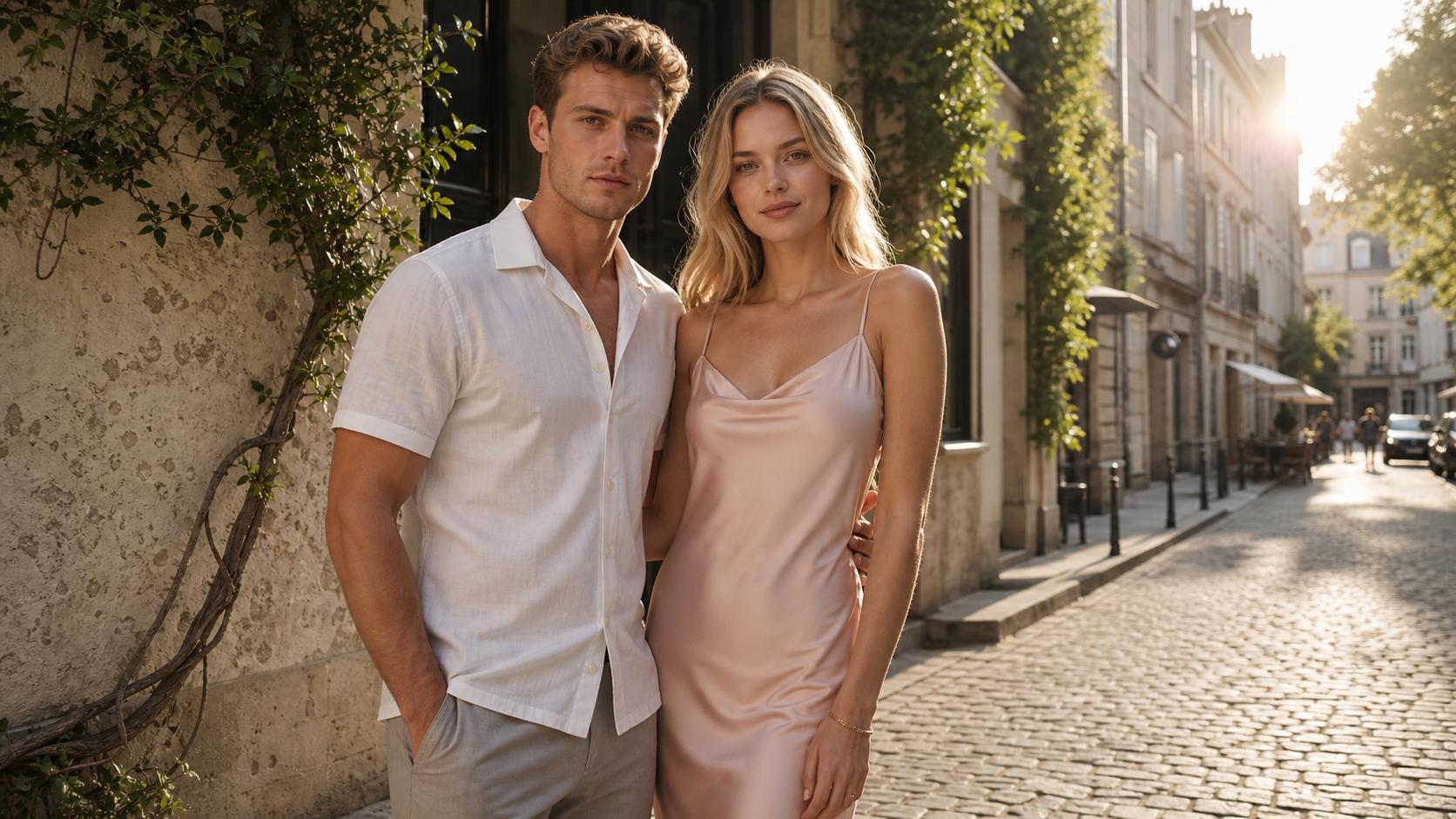
Every render is designed for HD output while preserving important reference details such as skin texture, fabric, product shape, and background mood.
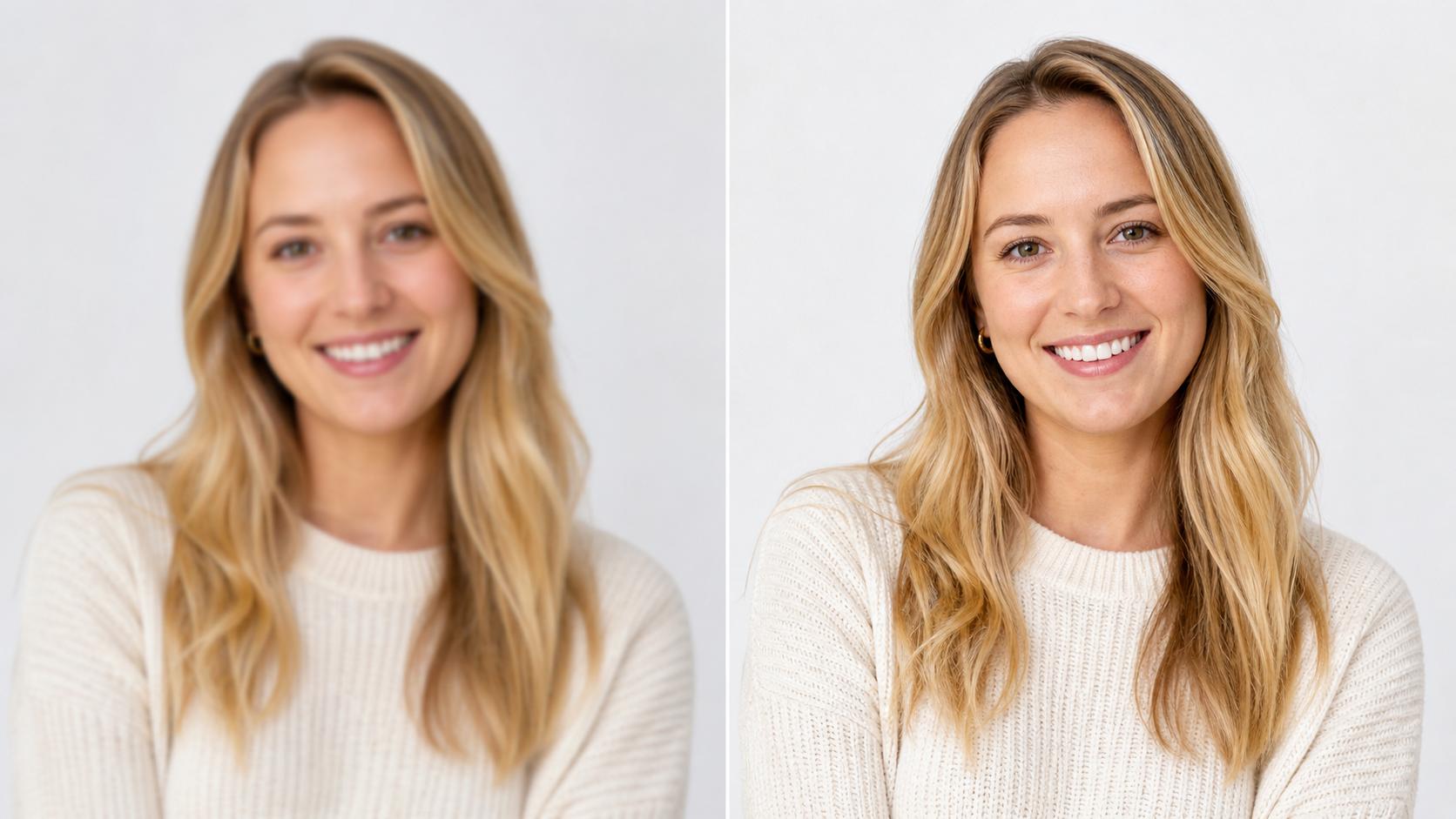
Seconds, Not Minutes
Upload a reference, describe the change, and compare the available results side by side when Image to Image returns variants. The flow is built for quick iteration on style, mood, and framing without restarting the whole edit.
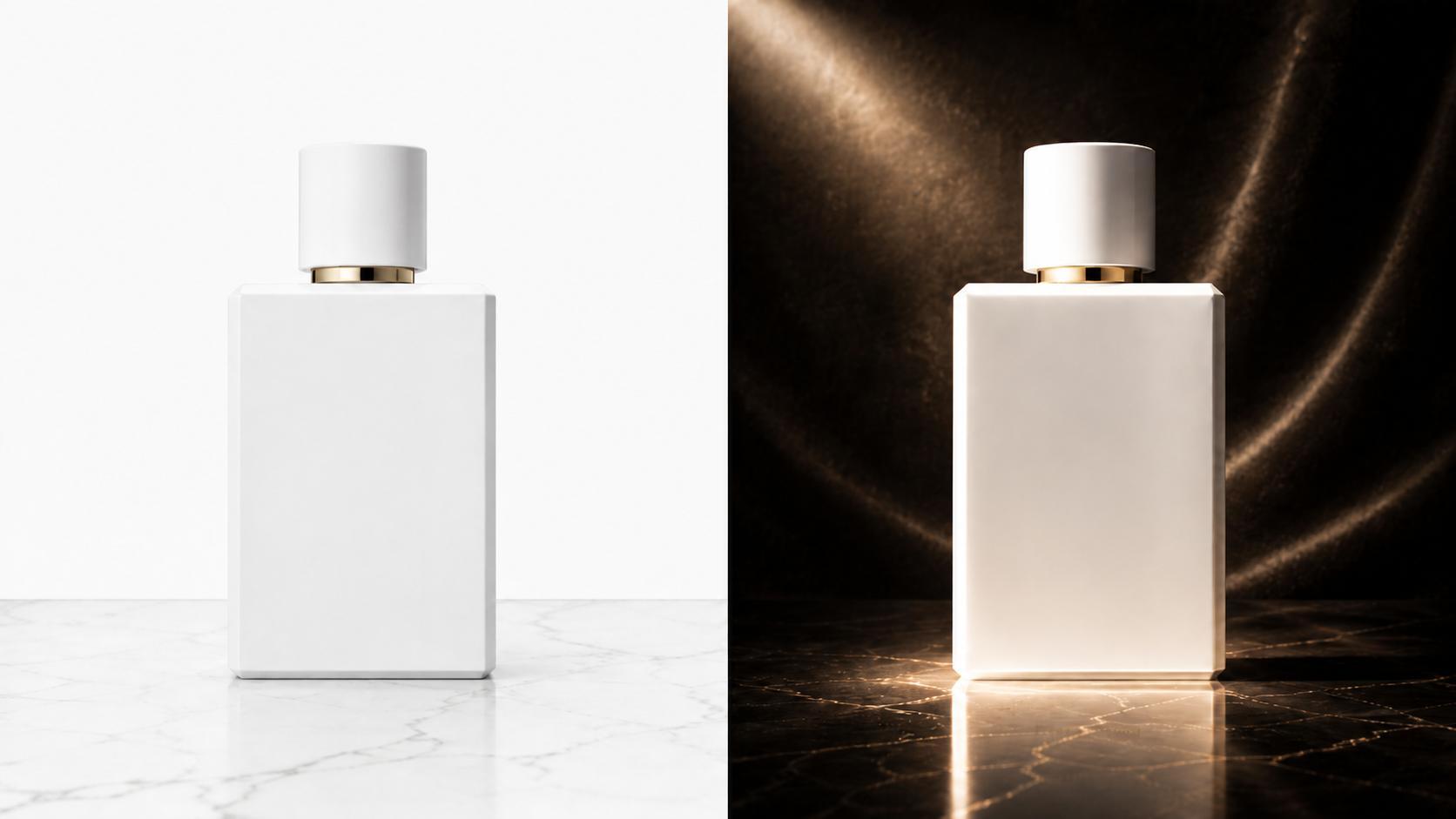
Every Style You'd Want
Ghibli watercolor, Pixar 3D, oil painting, anime, action figure, cinematic noir — switch between dozens of looks from one reference without re-uploading. Mix two in one image to image prompt to invent your own (think Ghibli in a Wes Anderson palette), with the subject locked while the aesthetic shifts.
Watermark-Free HD Downloads
Download edited images in HD without a watermark, including on the free plan.
What Sets Image to Image Apart?
Image to Image is built around the small controls that keep long restyling sessions moving — natural-language edits in the language you actually work in, encrypted-by-default uploads, and side-by-side variations on every prompt. Together they make it one of the best restyling tools for portraits, products, and concept art.
Prompt Your Edits in Your Language
Skip masking for most transforms — describe what should change and what should stay in English, Japanese, Chinese, Spanish, and more, and Image to Image follows the instruction like a capable assistant without forcing awkward translation.
Client Refs Stay Locked to Your Account
AIGenTools does not train its own models on your uploads, prompts, or outputs. Requests are processed by the model providers needed to generate your result, under their API data terms. Delete an upload and it is removed from the system without a backup copy.
Compare Variants from One Prompt
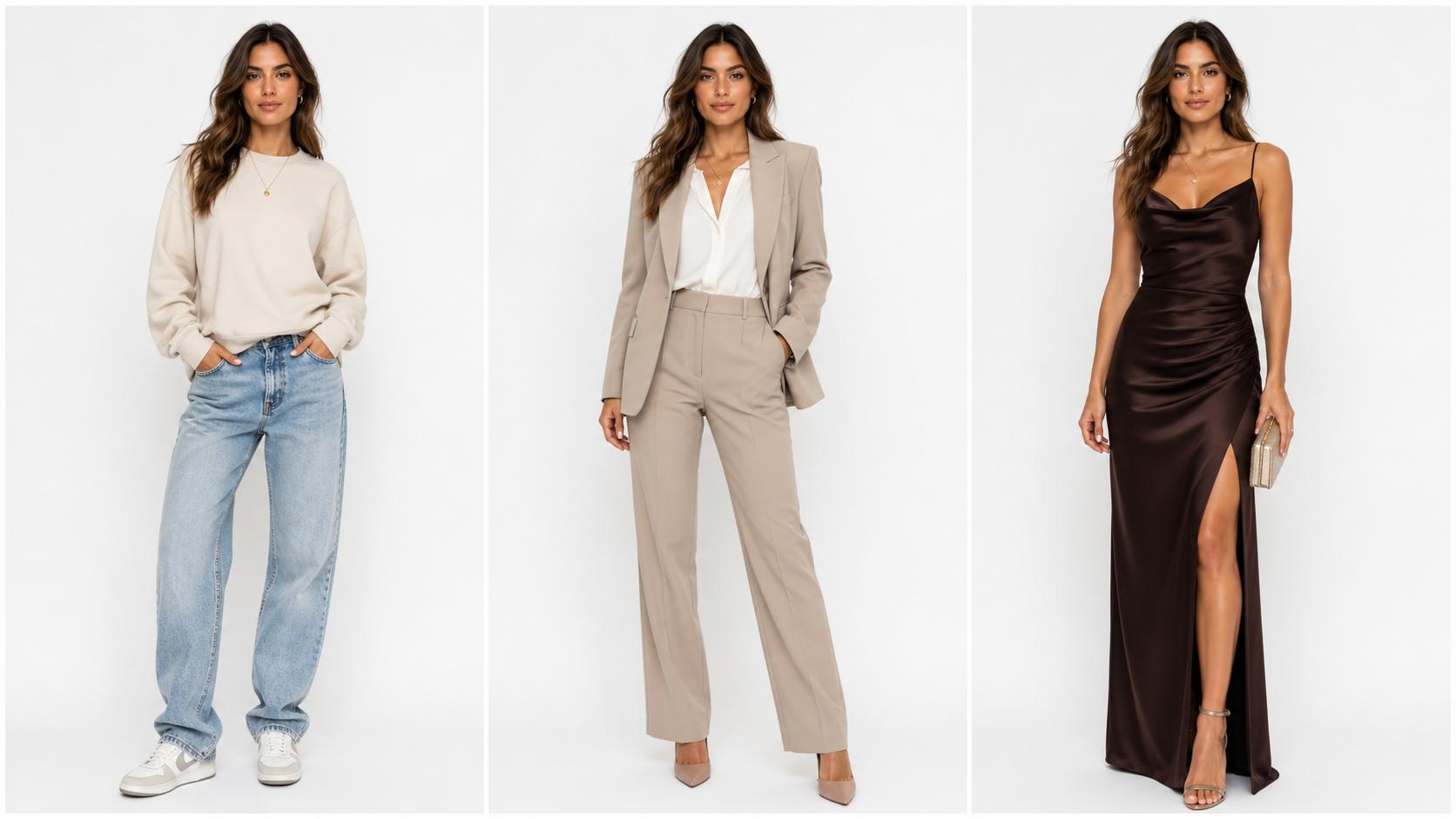
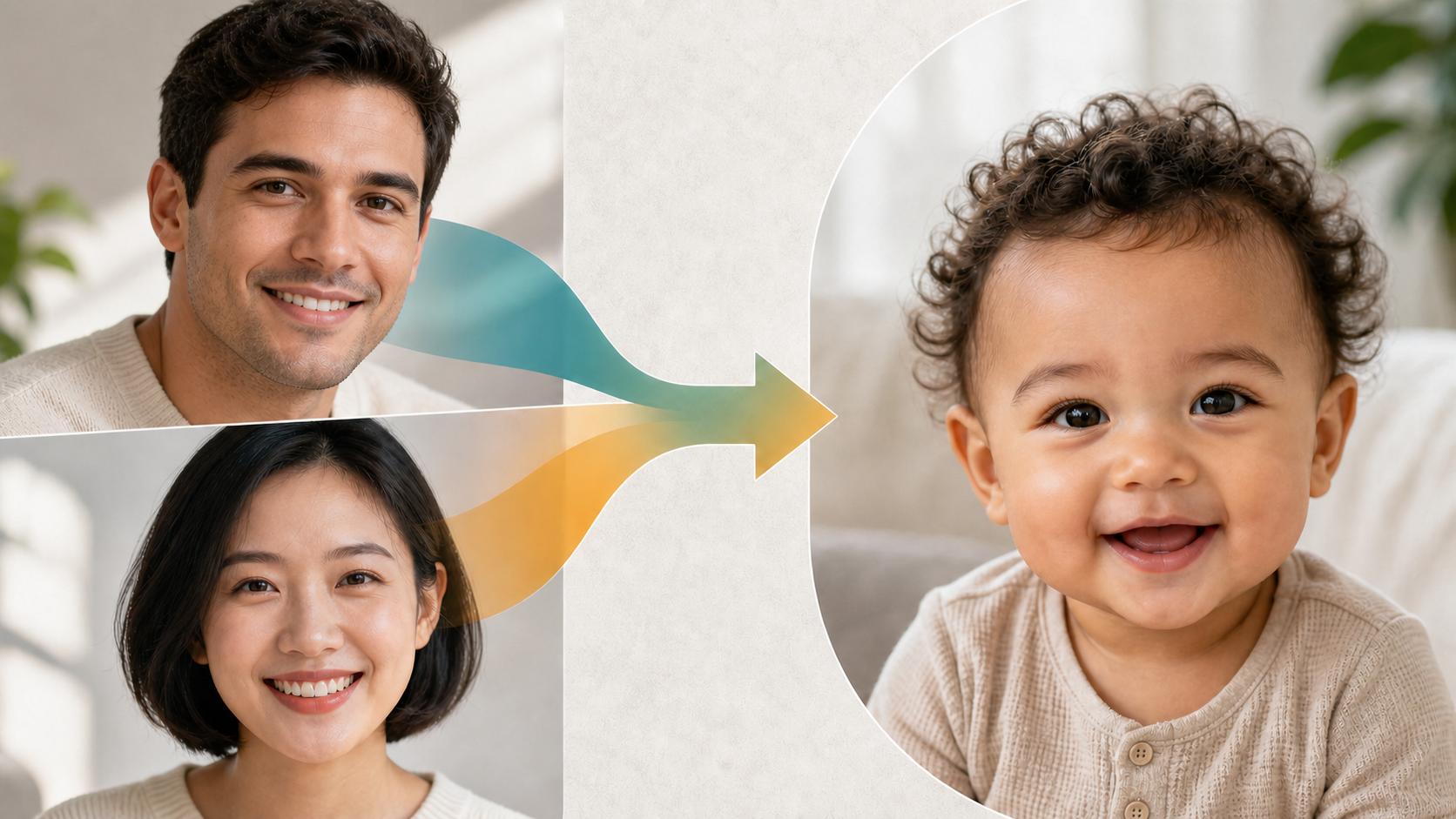
When a model returns multiple takes, Image to Image lets you compare styles, seeds, or models side by side, then keep the version that best fits the brief. Because every variant comes from the same upload, Image to Image keeps the subject steady while you weigh which look wins.
How to Use Image to Image
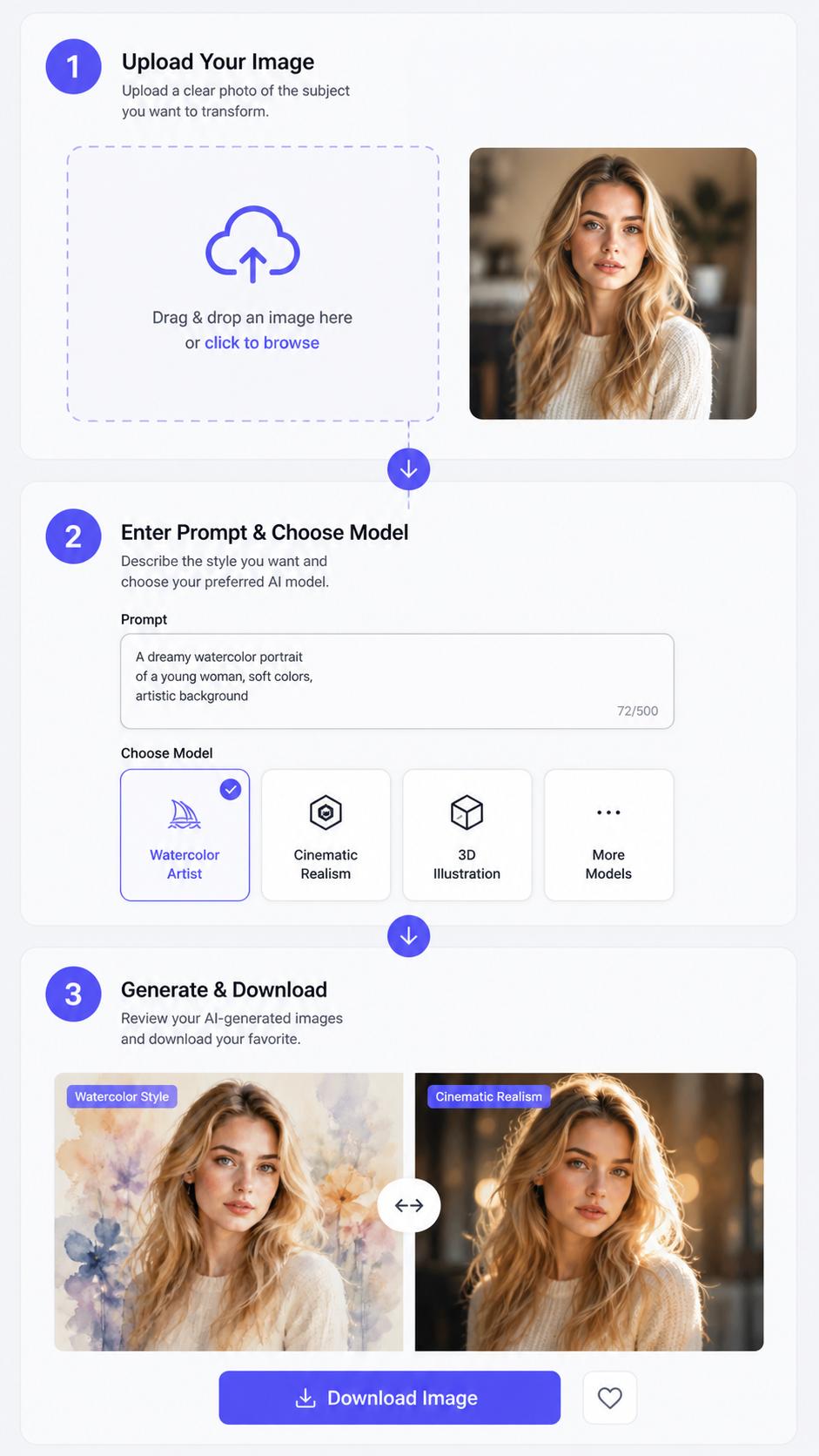
Step 1 Upload Your Reference
Upload a clear reference image into Image to Image — portraits, products, scenes, or illustrations all work best when the subject is visible and well lit.
Step 2 Describe the Change and Pick a Model
Name the target style, the mood, and what should stay locked. Swap between Nano Banana Pro, Seedream 5, GPT Image 2, and Seedream 4.5 to compare how each one renders your Image to Image edit.
Step 3 Review Side by Side, Export the Keeper
See the restyled render next to your original, keep the take that best preserves the subject, and download the HD result. Run another Image to Image pass with a tweaked prompt any time a detail is off.