Remove Text from Any Image
Upload a photo and wipe its captions, labels or dates, or circle just the words you want gone. The background is filled in to match.


Remove Text from Image Online — Erase Words, Keep the Background
Upload a photo and Remove Text from Image clears every caption, label and date, or only the words you circle. The AI fills in what was behind the letters, so the picture looks like nothing was ever written on it.
Remove Text from Image Without Affecting the Background
Any text eraser can delete words. Making the spot behind them look untouched is the hard part, so Remove Text from Image rebuilds the texture, color and light under every letter instead of blurring it.
What Makes This Text Remover Stand Out?
Blurring letters is not removing them. Remove Text from Image aims to be the best way to remove text from image files you already have: it rebuilds what was underneath and keeps the people, products and layout as they were.
Two Ways to Remove Text
All text clears every word in one run. Marked areas removes only the text you outline, which is what you want when a name or title should stay.
Boxes, Circles and Up to 10 Marks
Drag a box around a headline or a circle around a date stamp. Add up to ten marks per picture and undo or delete any of them.
Background Filled In, Not Blurred
Each cleared area is painted with the colors, textures and lighting around it, so you get no smudge, no patch and no gray block where the words used to be.
Same Shape as Your Photo
Results keep the proportions of your upload, whether it is a square post, a wide banner or a tall phone screenshot, so the clean picture drops straight back into place.
Works in Any Browser
Nothing to install. Upload a JPG, PNG or WEBP up to 10 MB from a computer, iPhone or Android phone and mark text with a mouse or finger.
Every Result Saved to History
Finished pictures stay in your history panel, ready to download again or to reopen with the same photo and mode when you want another try.
How to Remove Text from an Image
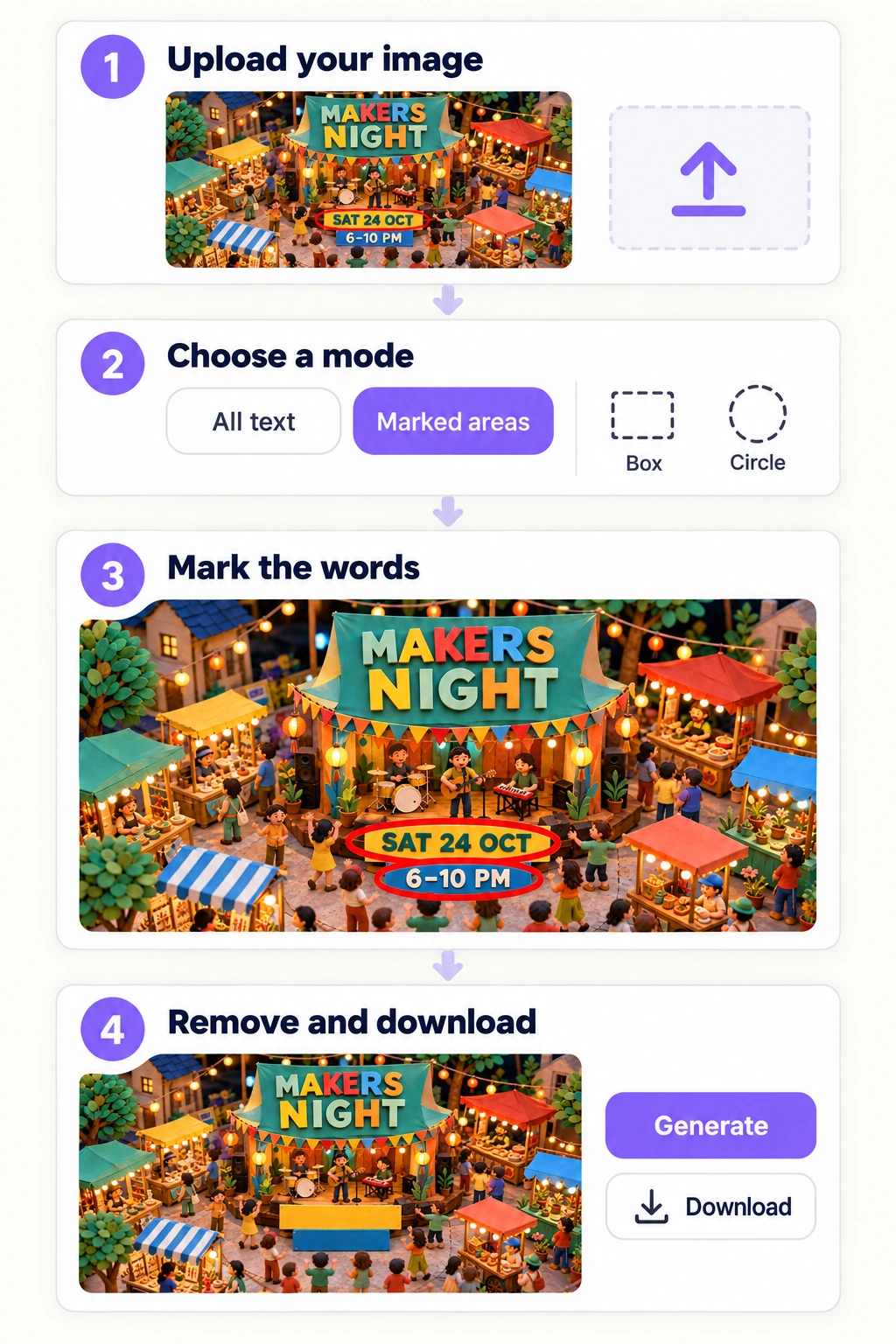
Upload Your Image
Add a JPG, PNG or WEBP up to 10 MB to Remove Text from Image: a product photo, a screenshot, a poster or a picture with a caption. The sharper the photo, the cleaner the filled-in background.
Choose All Text or Marked Areas
All text removes every word, number and date in the picture. Marked areas removes only the text you outline, which is the right choice when part of the wording should stay.
Mark the Text You Want Gone
In Marked areas, pick Box or Circle and drag over each piece of text. Leave a little space around the letters so whole words sit inside the mark, and use several marks for text in different places.
Remove the Text and Download
Press Generate. Remove Text from Image usually finishes in under a minute, and the clean picture appears in your history panel, ready to download.
Explore More Tools from AIGenTools







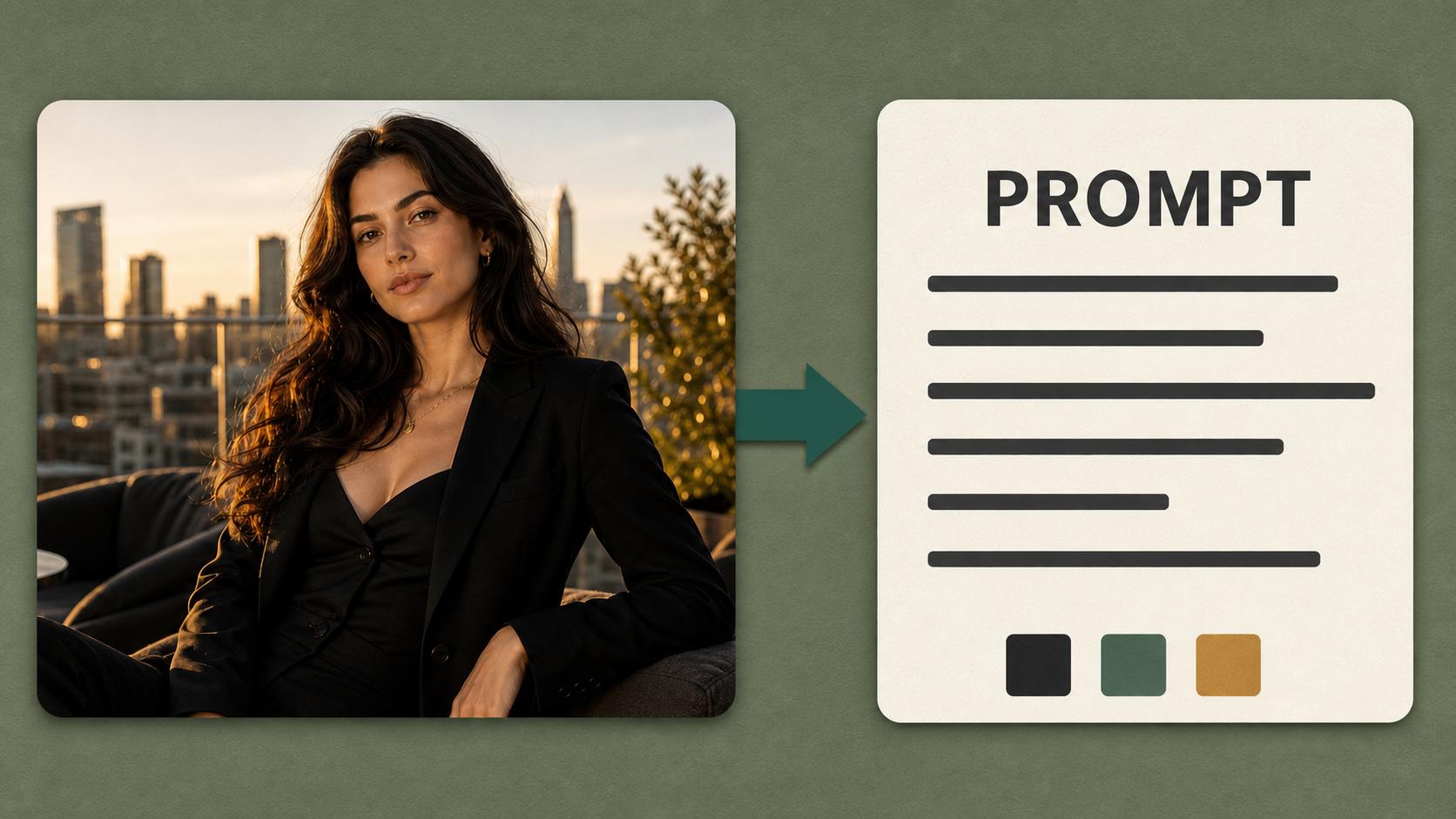
Remove Text from Image and Get a Clean Picture Back
Upload a photo, erase all of its text or mark only the words you want gone, and download a clean image with the background filled in.