AI Video Editor — Edit Any Video with a Prompt
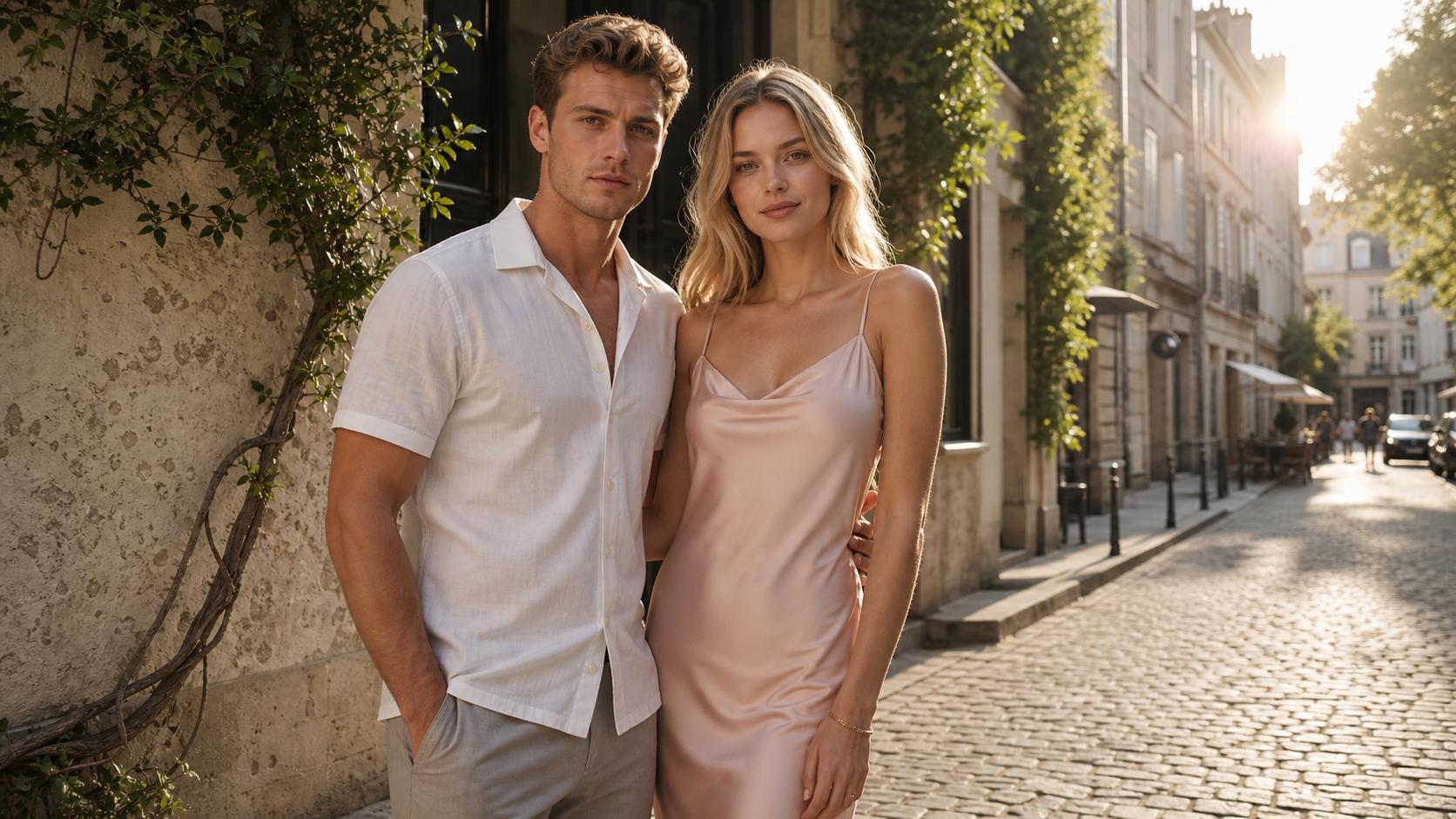
Upload a clip, type the change, and this online AI Video Editor rewrites the footage — swap an outfit, restyle the scene, replace the background, or drop in an element from a reference image. Powered by Wan 2.7 Edit and HappyHorse Edit, it keeps the original motion and timing intact.
Edit Video with a Prompt — Just Describe the Change
No masking, tracking, or rotoscoping. Type a one-line instruction — "make it snow", "turn this into anime" — and AI Video Editor applies it across the clip with motion and timing preserved.
What Makes AI Video Editor Different?
Under the scenarios sits one engine: AI Video Editor re-renders footage instead of filtering it. That is what separates a real editor from a filter app — here are the core capabilities behind every edit.
AI Video Style Transfer, Applied to Every Frame
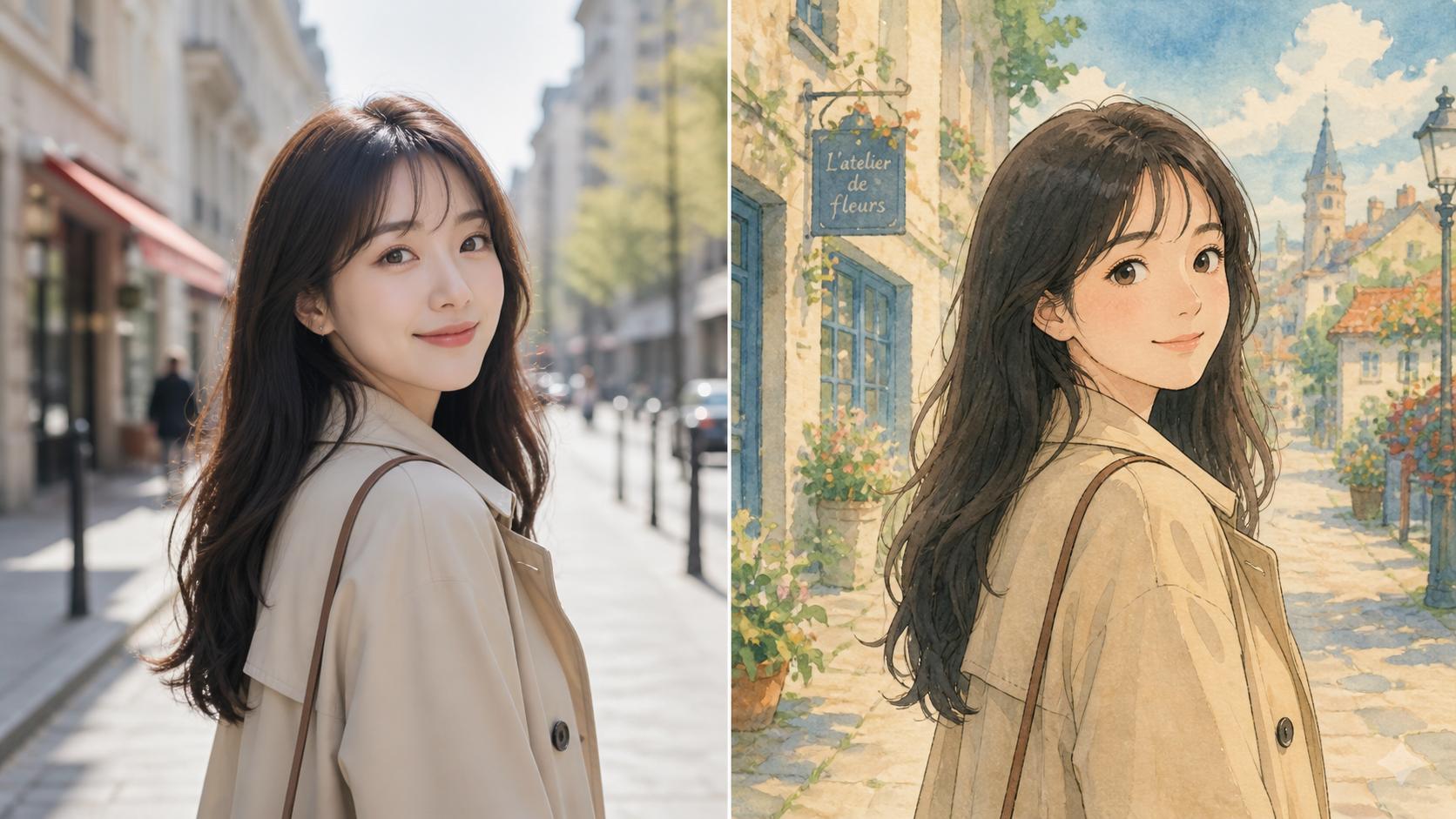
Repaint a whole clip as anime, oil painting, claymation, or a cinematic grade from one instruction. AI Video Editor is not a filter tinting pixels — every frame is re-rendered in the new look while the layout holds.
Reference Images Pin the Exact Look
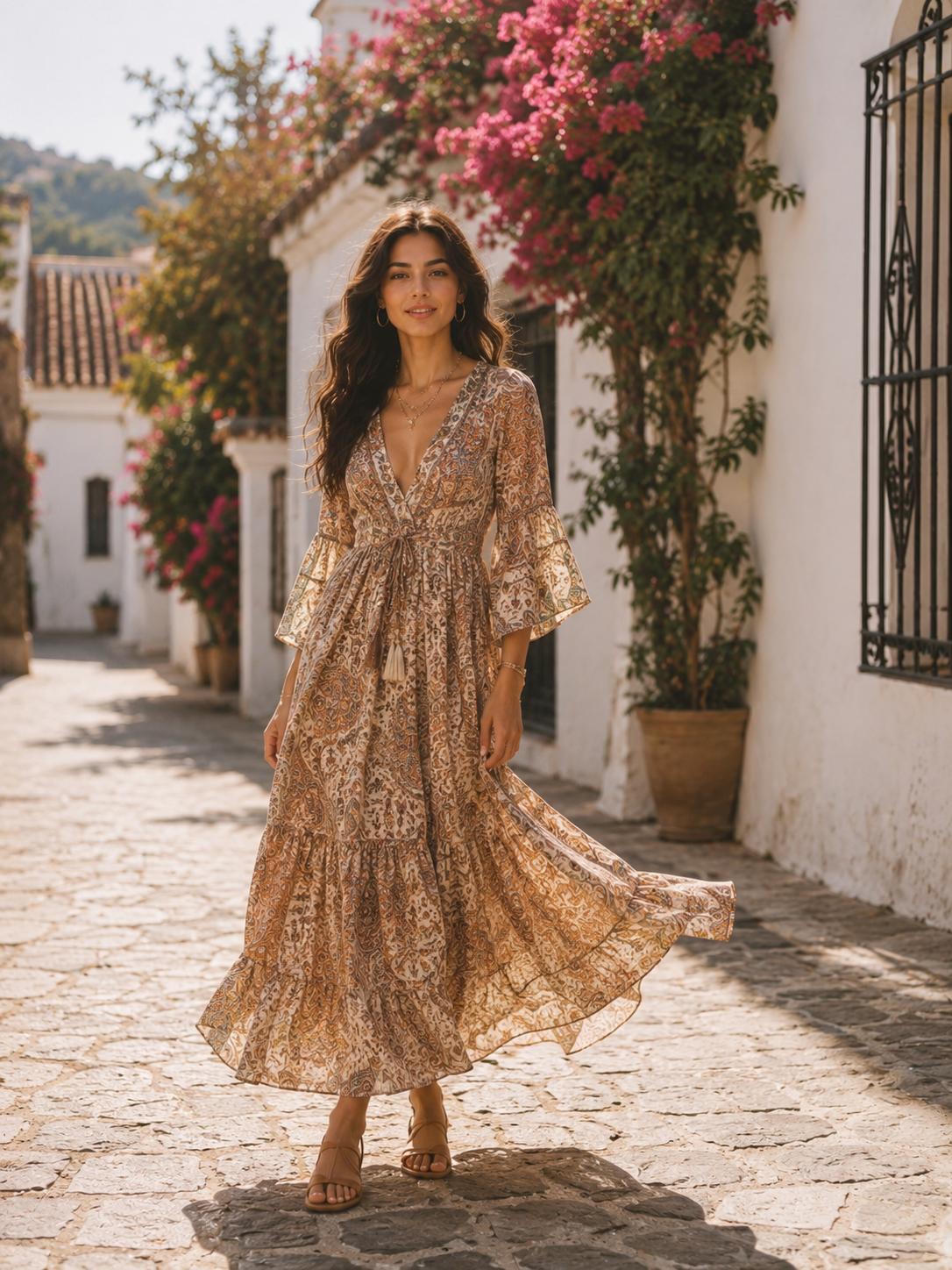
Words run out at "that exact jacket" — attach reference images and AI Video Editor matches them instead of guessing: a garment, a character design, a texture. Depending on the model, up to five references steer it.
Motion, Camera Path, and Timing Stay Locked
AI Video Editor preserves the structure of the source — choreography, pans, pacing — and re-renders only what the instruction touches. That separates a true edit from generating a new clip that resembles yours.
How to Use AI Video Editor
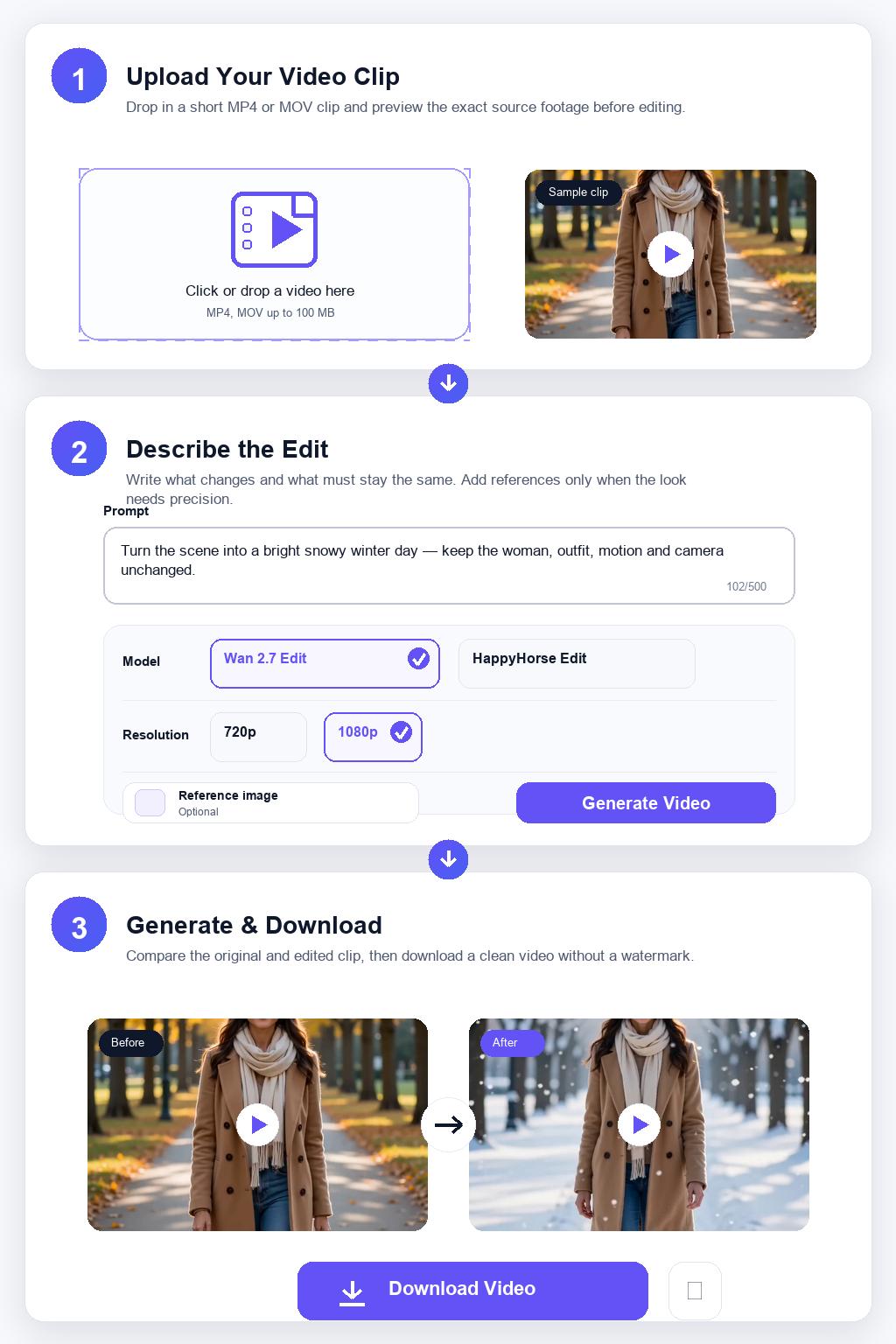
Step 1 Upload Your Video Clip
Drop in an MP4 or MOV up to 100MB. In AI Video Editor, Wan 2.7 Edit works on clips from 2 to 10 seconds; switch to HappyHorse Edit for anything up to 60 seconds. AI Video Editor checks length and size before any credits are spent, and previews your clip.
Step 2 Describe the Edit and Add References
Type the instruction the way you'd brief an editor: what changes, what stays. Attach reference images when the edit needs precision — a garment, a character sheet, a texture. Then pick an AI Video Editor model that fits your clip.
Step 3 Pick the Resolution and Generate
Choose 720p or 1080p, hit Generate, and watch AI Video Editor land the result in the history panel. If it drifts from your intent, tighten the instruction — name what must not change — and rerun. Download the finished clip clean, no watermark.