Free AI Image to Video Generator — Animate Any Photo
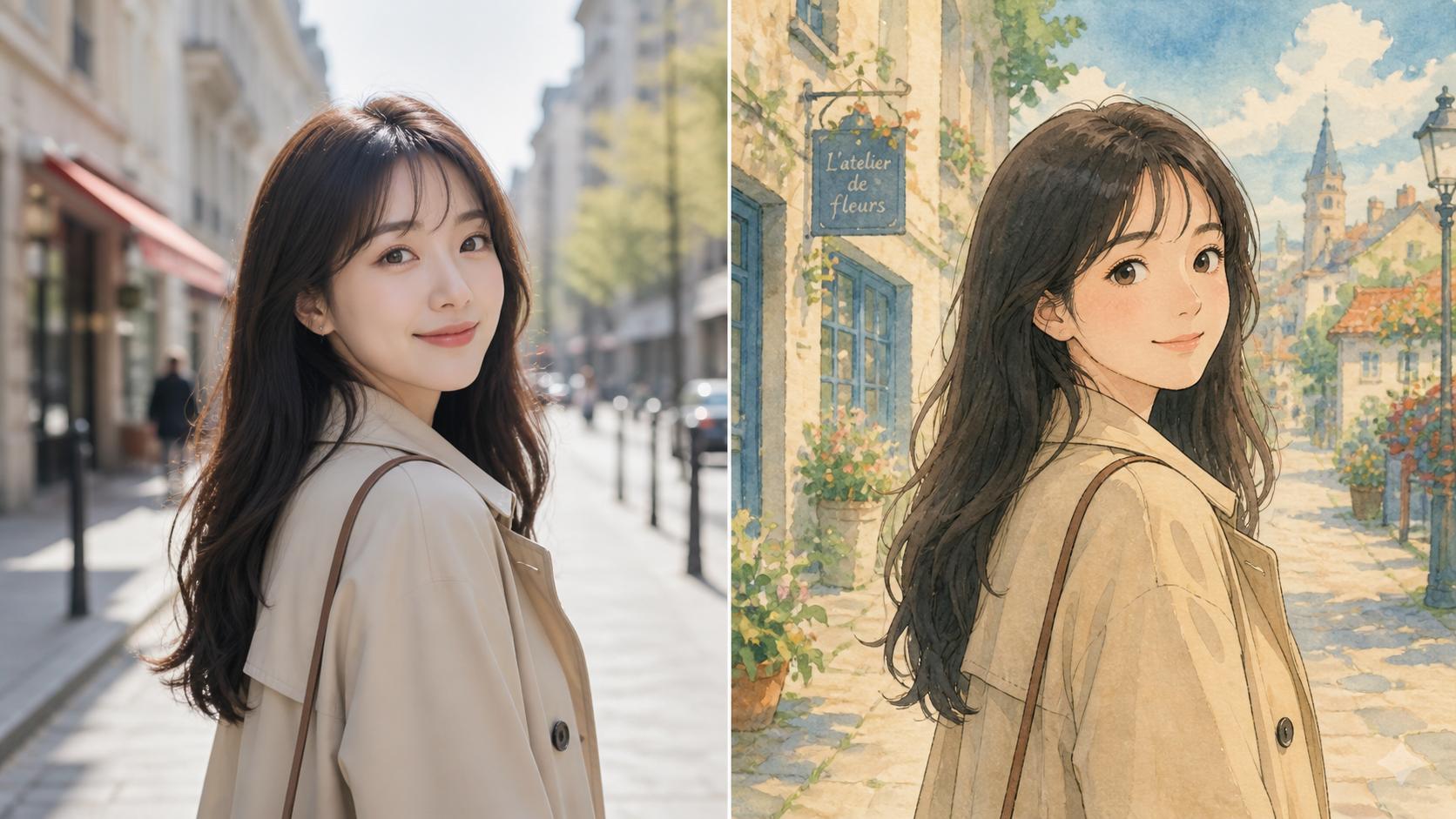
Upload a photo and this online Image to Video generator brings it to life — product shots, portraits, landscapes, and reference stills all animate into a cinematic HD video. Pin the opening and closing frame, switch between Kling, Seedance, and Wan from one upload, and rerender the same still in a fresh style.
Animate Photos with Leading Video Models
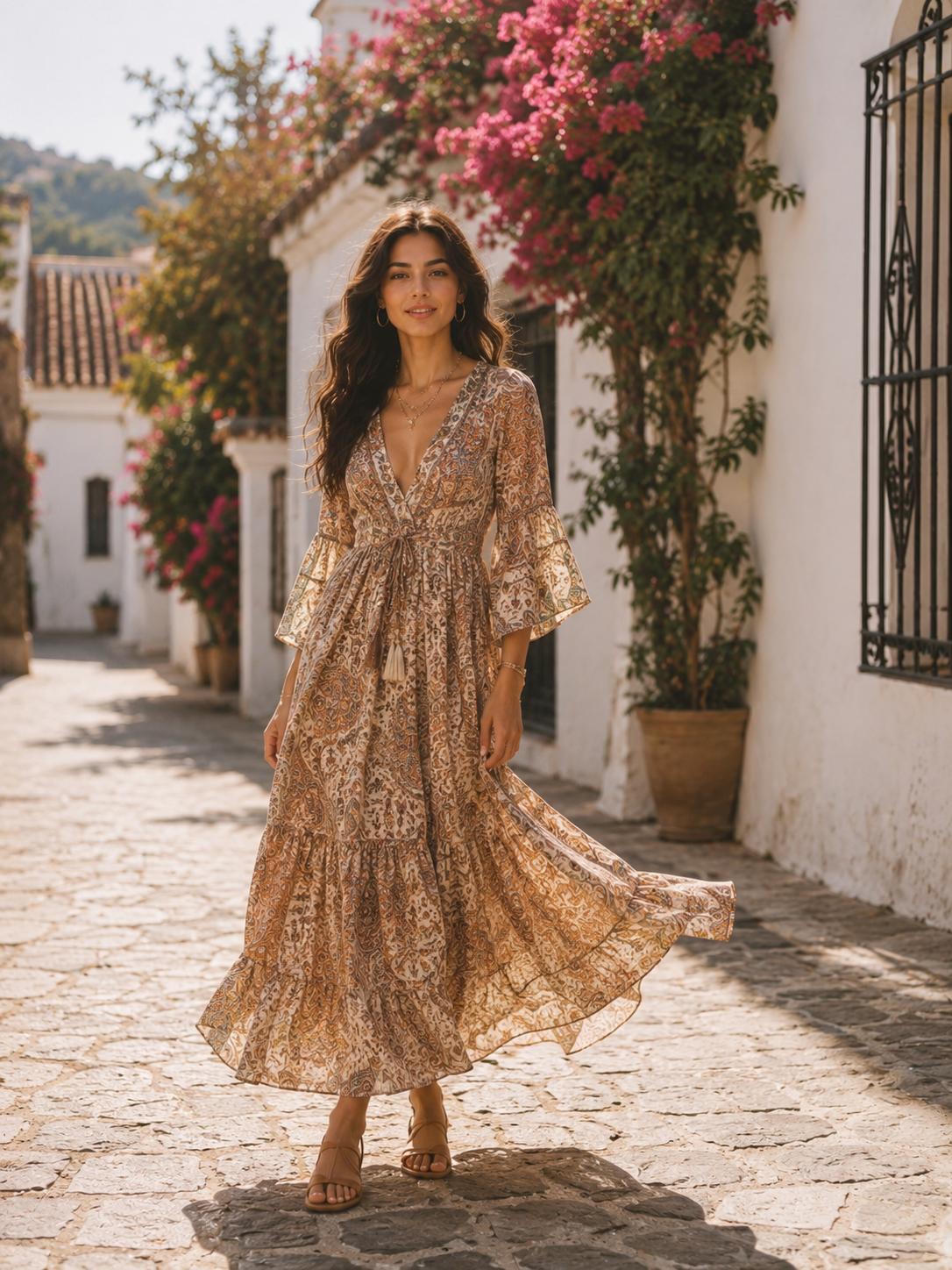
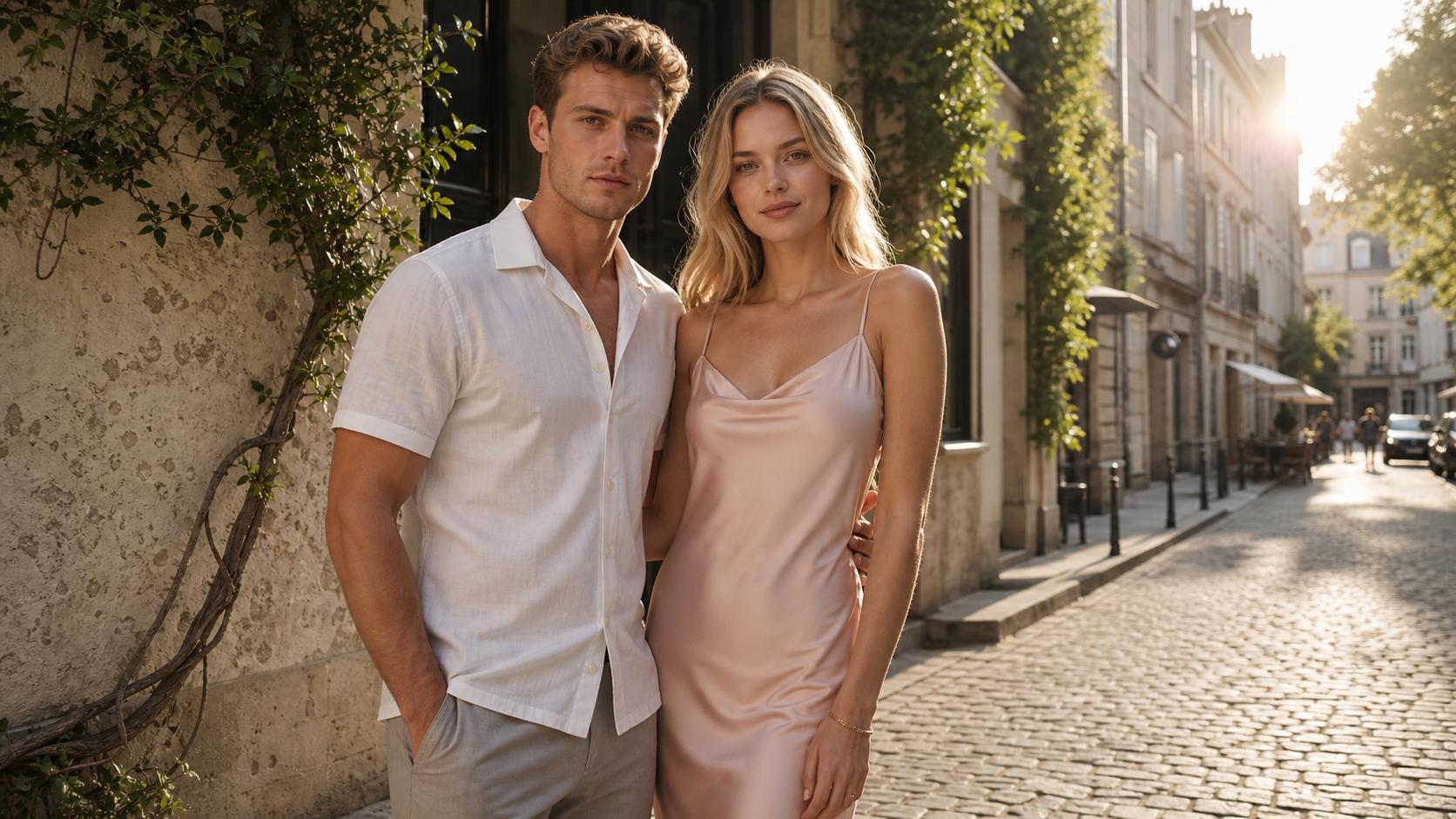
Product hero shots, portraits, landscapes, storyboard frames — AIGenTools' image-to-video tool animates any photo through the leading video models, with first-and-last frame control and HD exports without a watermark.
Why Choose Image to Video?
Image to Video layers in the controls social creators reach for — multilingual motion briefs, first-and-last-frame control to land on a specific pose, and a privacy posture for client work. It adds up to one of the best ways to animate stills for social and brand feeds.
Brief the Motion in Your Language
Write the motion prompt in English, Chinese, Japanese, Spanish, and more — the image to video models parse your instruction directly, so nuanced direction reads the same whether or not you wrote it in English.
Pin the Opening and Closing Frame
Drop in one photo and the model decides how the motion ends. Drop in a second photo as the final frame and the image to video model animates the path between the two — so the video lands exactly where you planned it.
Client Portraits and Unreleased Product Shots Stay Contained
AIGenTools does not train its own models on your uploads, prompts, or outputs. Requests are processed by the model providers needed to generate your result, under their API data terms. Delete a project and the source image plus generated variants are removed from the system without a backup copy.
How to Use Image to Video
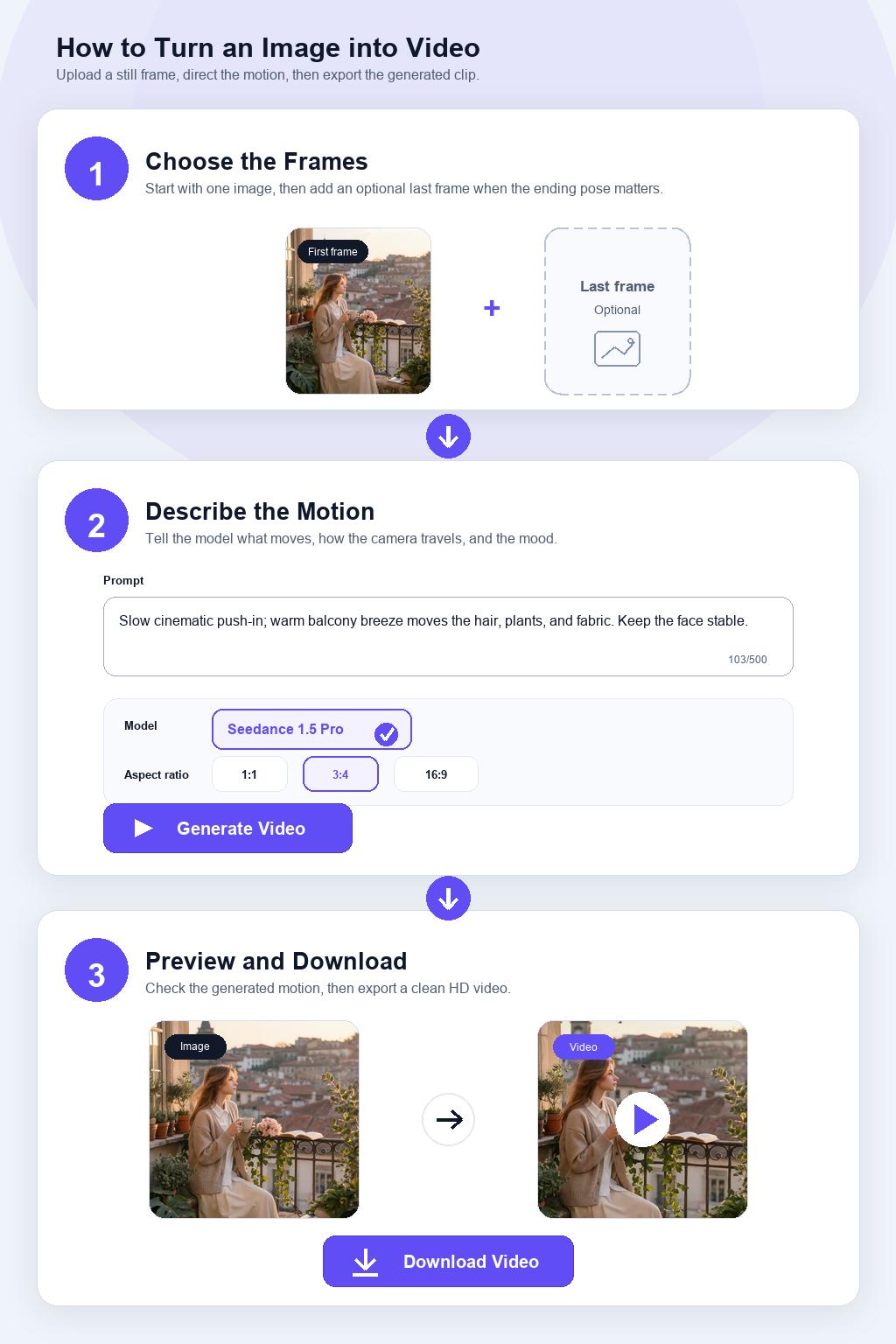
Step 1 Upload Your Photo
Upload a clear source image and it becomes the opening frame of your video. Portraits, product shots, landscapes, and illustrations all work — the sharper and better-lit the upload, the steadier the animation. Add a second photo as the end frame to finish on a specific pose.
Step 2 Brief the Motion and Pick a Model
Type a one-line motion brief — what moves, camera direction, pacing, mood — then pick the image to video model that fits the shot from the picker above the prompt. Set the aspect ratio on the same panel: 9:16 for Reels and Shorts, 16:9 for YouTube and web heros, 1:1 for feeds, or another ratio when the placement is niche.
Step 3 Review the Motion, Download the Result
Watch the animation loop in the preview pane and check that the motion reads the way you briefed — if the drift is too heavy or the pacing is off, rerun with a tighter prompt before exporting. When it lands, free Image to Video exports the HD result without a watermark.