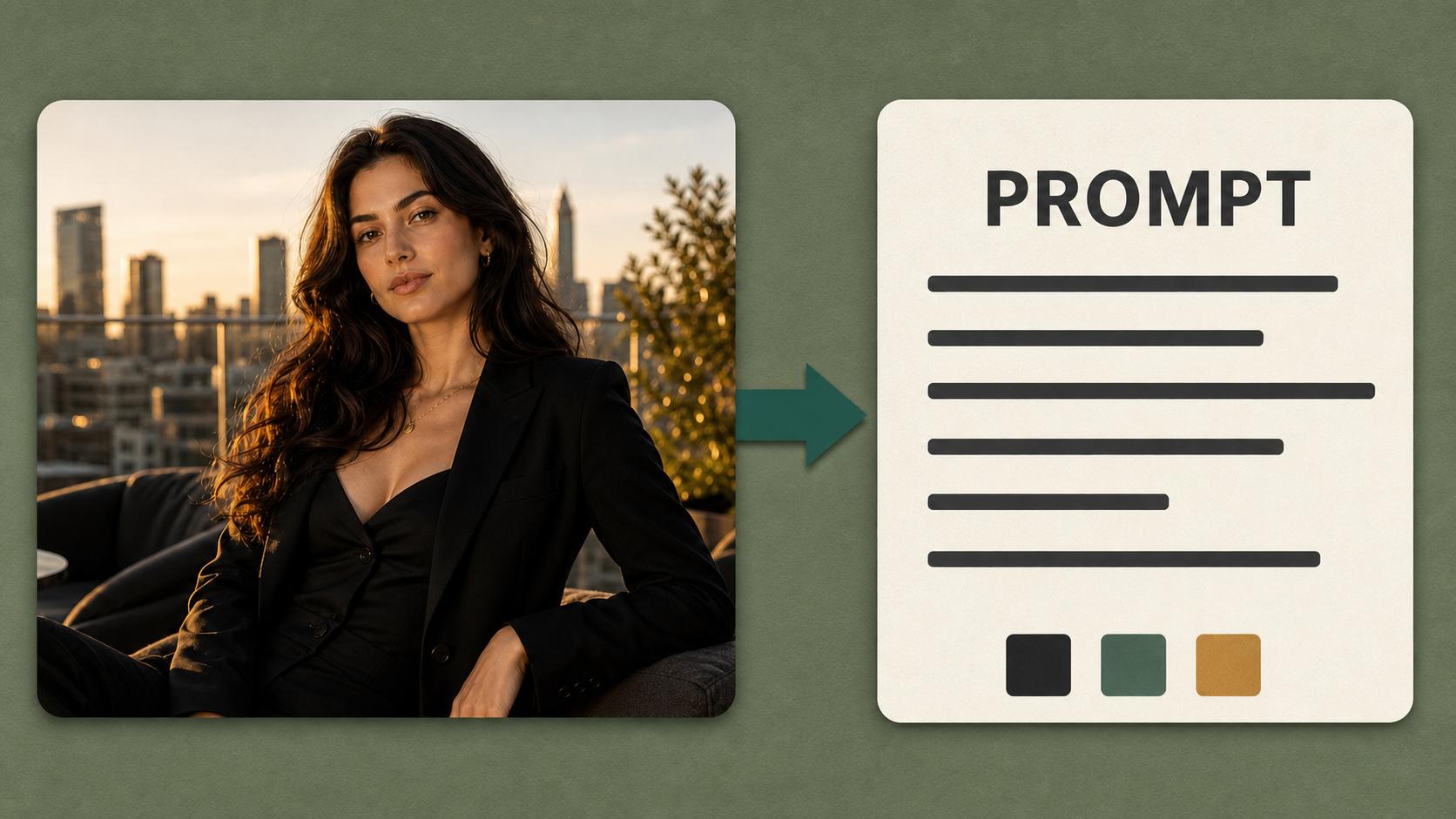
Add at least one image or video, then type @ in the prompt to pick an upload as a reference. Audio guides voice and sound and needs an image or video alongside it.
Upload images or videos and @ them as references to guide your video.
0 / 20000
5s
4s15s
AI Reference to Video — Keep Your Character in Every Shot
Upload a few photos of a person, product, or scene, describe what happens, and Reference to Video renders a clip where the subject stays the same — same face, same outfit, same look — from first frame to last.
13s
1
2
3
4
Turn Reference Images into Videos That Stay Consistent
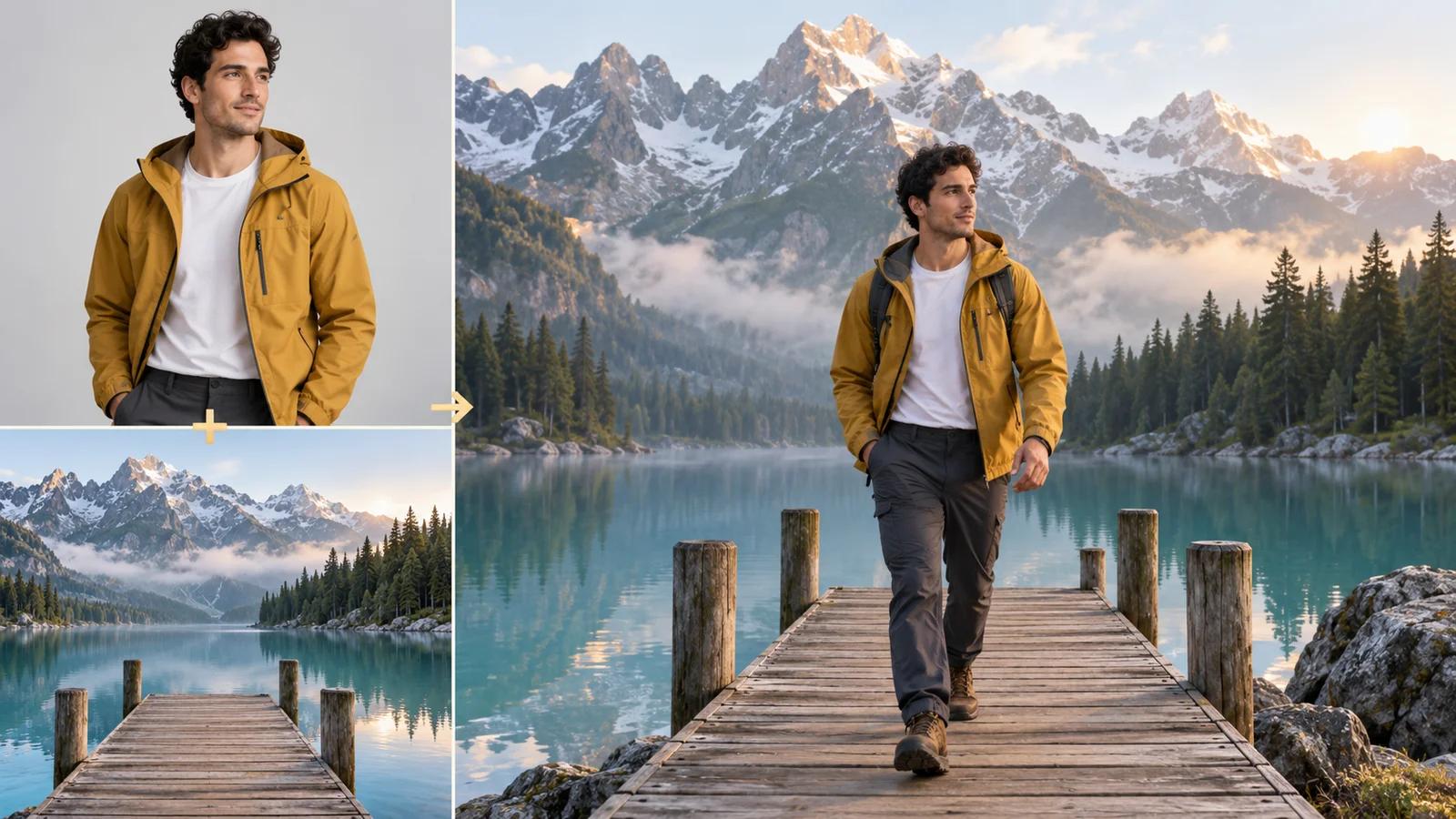
Image to video animates one frame. Reference to Video goes further: it studies every image you upload, learns the subject's identity and style, then builds new shots around them — so a character can change scenes and stay the same.
Keep the Same Subject Across Every Shot
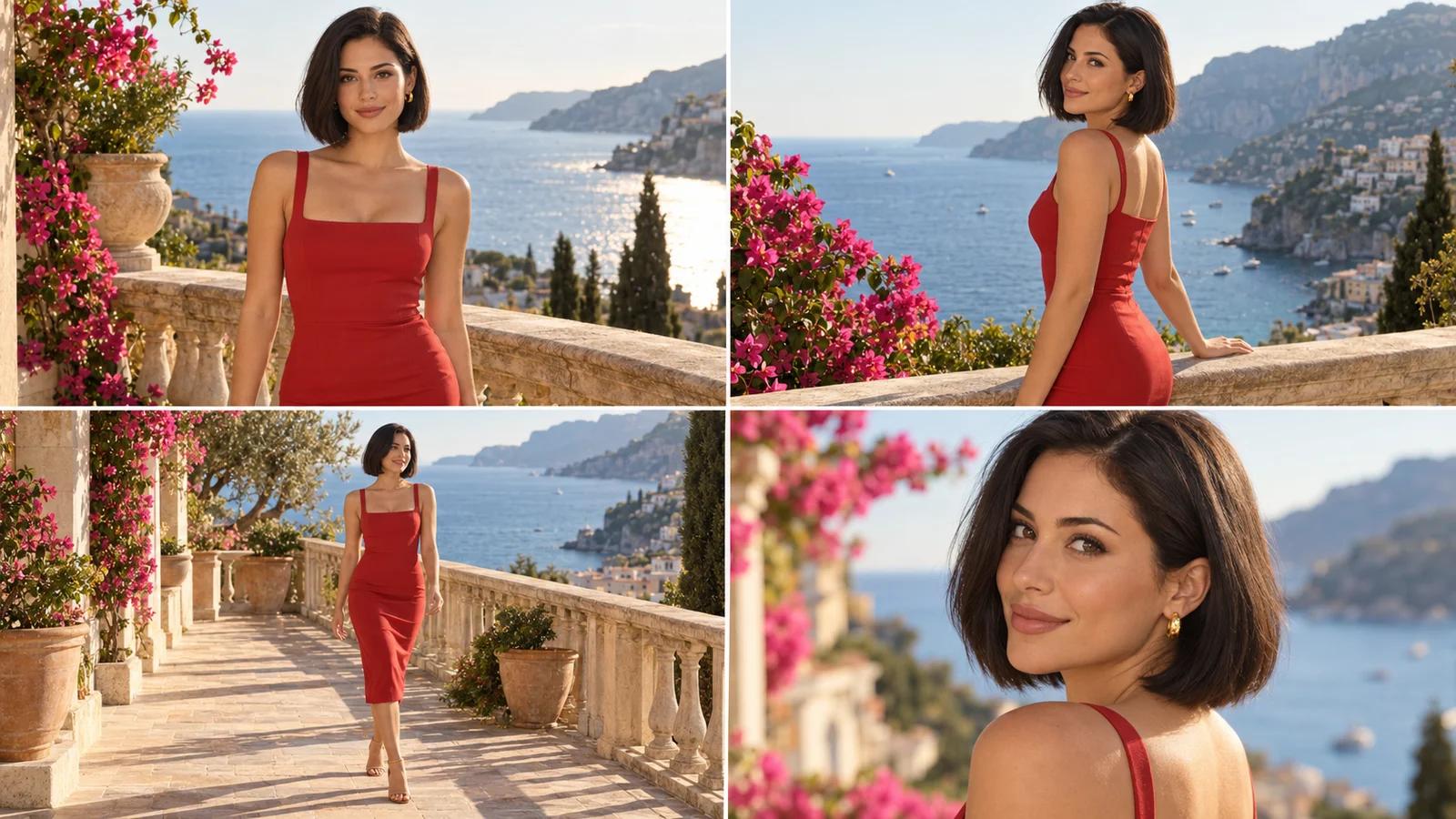
Reference to Video reads the face, body, outfit, and color of each upload and holds them steady while the camera and action change. The result is a clip that matches your references, not a lookalike that drifts after a second.
Make Product Videos from a Few Photos
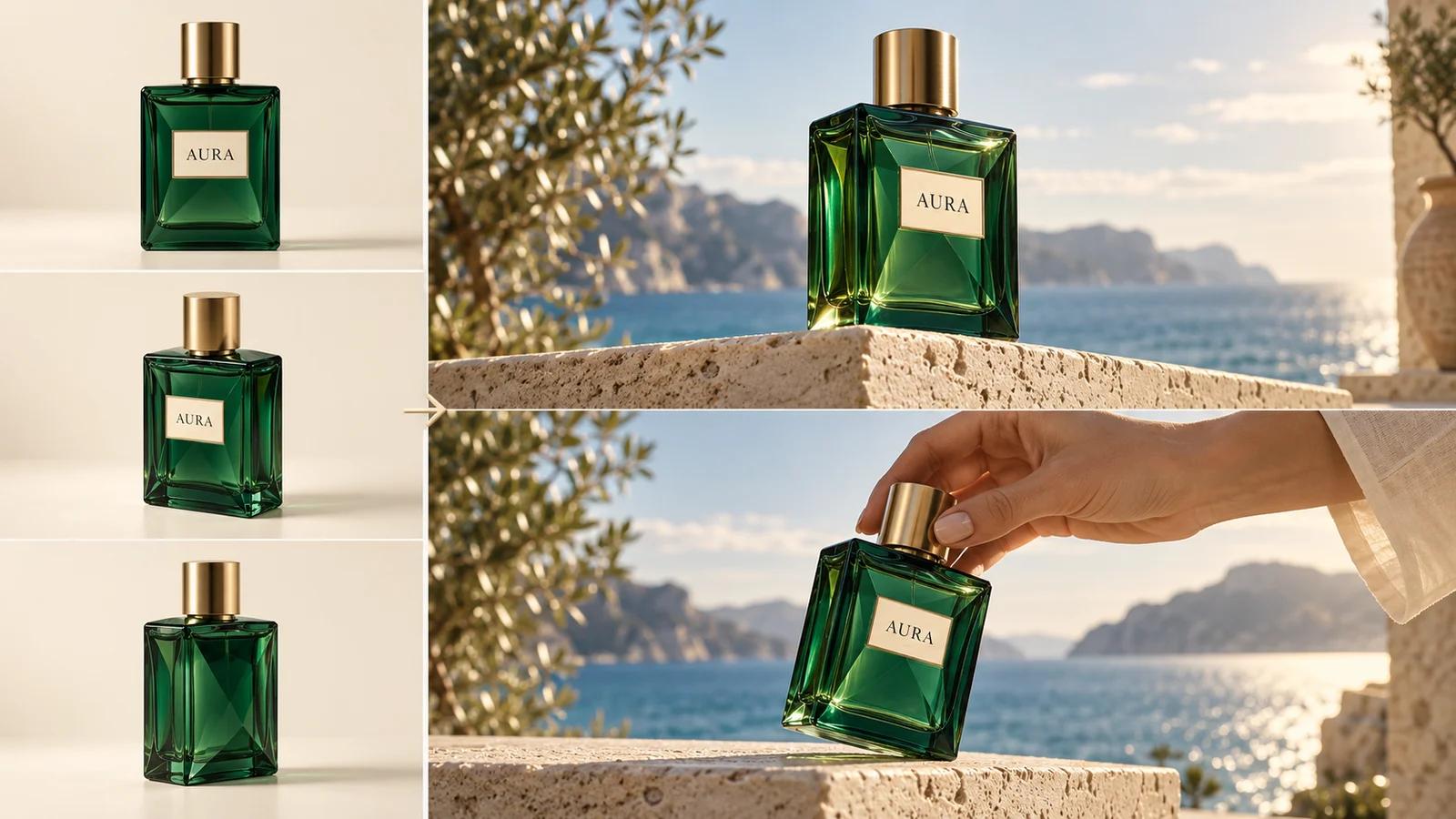
Three product shots are enough. Describe a slow orbit, a lifestyle scene, or a hand picking it up, and Reference to Video keeps the shape, label, and finish accurate — a short clip for a listing or ad without a studio shoot.
Bring Characters and Mascots to Life
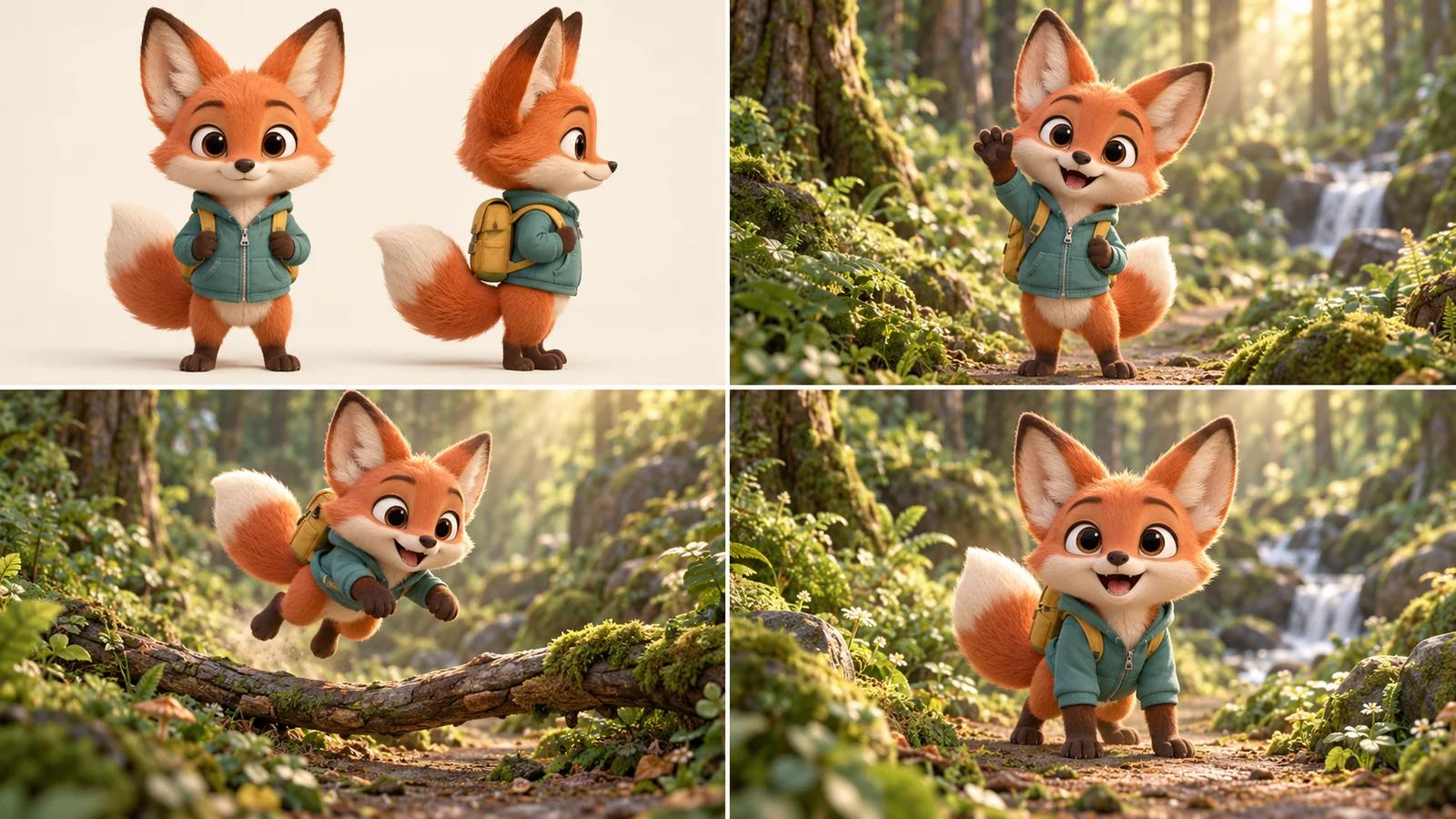
Illustrated characters, mascots, and original designs stay on-model when they move. Upload the character sheet, write the action, and get an animated clip that looks like your art — ready for a channel intro, a sticker, or a pitch.
Put the Same Subject into Any Scene
Upload the subject and a photo of the place, then describe the action. Reference to Video keeps the person or product true to their references while building the new environment around them — a studio portrait becomes a street scene without a reshoot.
What Makes Reference to Video Different?
Most tools either animate a single frame or invent everything from text. The best reference to video generator does neither: it takes your images as the source of truth and lets the prompt direct the motion.
Image, Video, and Audio References
Combine up to nine images with short reference clips and audio in one request — the model treats them all as references, not frames to animate.
Prompt-Driven Motion and Camera
Describe the action, the camera move, and the setting in plain language. Point at uploads by order — the first image, the second image.
Several Video Models in One Place
Switch between fast, affordable options and higher-fidelity models from the same input, and compare results side by side in your history.
Clips from 4 to 30 Seconds
Pick the length per generation. Shorter clips for loops and ads, longer takes when a story needs room to breathe.
Up to 4K with Native Sound
Resolution runs from 480p previews to 4K on the top model, and audio can be generated along with the picture.
Watermark-Free Downloads
Every clip downloads clean as MP4, ready for editing, posting, or handing to a client.
How to Create Consistent Character Videos from Reference Images
From a handful of photos to a finished clip in three steps.
01
Upload Your Reference Images
Add one to nine JPG, PNG, or WebP images that show the subject clearly — different angles help. Keep them sharp and well lit; the model can only hold onto what it can see.
02
Describe the Action and Pick a Model
Write what happens and how the camera moves, referring to your uploads by order. Choose a video model, then set length, aspect ratio, resolution, and sound.
03
Generate and Download
Click Generate and the clip appears on the right. Download it watermark-free, or adjust the prompt and run it again from the same references.
Frequently Asked Questions About Reference to Video
Reference to Video is an AI video tool that generates a clip from one or more reference images plus a text description. Instead of animating a single starting frame, it uses your images to learn what the subject looks like — a person, a character, a product, a style — and then produces new footage where that subject stays consistent while the action, camera, and setting follow your prompt.
You upload up to nine reference images — plus optional short video or audio clips — and write a prompt. Reference to Video sends both to a multimodal video model that reads identity, outfit, color, and composition from the images, then synthesizes motion from the text. The images are references, not frames: the model creates new angles and poses as long as the subject matches what you uploaded. Generation runs in the background and the result lands in your history.
Image to video treats your picture as the first frame and animates forward from it, so the shot is locked to that composition. Reference to Video treats your pictures as a description of the subject and builds the shot from scratch, which is why it can show the same character from a new angle, in a new place, or across several clips. Use image to video to animate one specific frame; use Reference to Video when consistency across shots matters more.
One clear image is enough for a simple shot. Add more when the video needs to see something a single photo cannot show: a side angle so the face holds up when the subject turns, a full-body shot when the outfit matters, a second subject, or the scene you want them placed in. A few well-chosen references beat nine near-duplicates.
Sharp, well-lit, and uncluttered. The subject should fill a good part of the frame, with the face or product clearly visible and nothing covering it. Plain backgrounds help the model separate the subject from the scene. JPG, PNG, and WebP work, up to 30 MB each with the shorter side at least 300 pixels.
Close, not pixel-identical. The model rebuilds the subject for every frame from what it learned in your references, so expect a faithful likeness in face, hair, outfit, and proportions rather than a copy of one photo. Fidelity rises with clearer references and an extra angle, and drops with blurry, filtered, or heavily cropped images. If a detail drifts, add a reference that shows it or compare the same input on another model.
Consistent character videos are the core use: the same person, mascot, or illustrated character across several clips without changing face or outfit. It also covers product clips from catalog photos, placing a subject into a new environment you supply as a reference, storyboards where the cast stays recognizable scene after scene, and style-matched B-roll for explainers and ads. Anywhere the same subject must appear in more than one shot, Reference to Video replaces regenerate-and-hope with a repeatable input.
Reference to Video currently runs on Seedance 2.0, Seedance 2.0 Fast, Seedance 2.0 Mini, Seedance 2.5, and MiniMax H3, and you pick the model from the selector before generating. The Seedance family covers quick, affordable drafts up to 4K final renders; Seedance 2.5 supports the longest clips, and MiniMax H3 generates native stereo sound. Credit cost per clip is shown before you generate.
Most models generate between 4 and 15 seconds per clip, and Seedance 2.5 extends that to 30 seconds. Longer clips cost more credits, so test the prompt at a short length first, then rerun the one you like at the final duration. For longer pieces, generate several clips from the same references.
Yes. The Seedance models can generate audio alongside the picture, and you can switch it off per generation if you plan to add your own track. MiniMax H3 produces native stereo sound with every clip. You can also upload short reference audio clips, together with an image or video, to guide the voice or sound design.
Give the model a few clean references instead of many messy ones, and be concrete in the prompt: name the subject by image order, describe one clear action, and specify the camera. Keep each clip to one scene. If the subject drifts, add a reference from the missing angle rather than rewriting the prompt.
Every clip downloads watermark-free as MP4. Reference to Video requires a signed-in account because video generation is billed in credits per clip — reference video seconds are billed with the clip at a reduced rate, and the exact cost appears on the Generate button before you confirm. Your references and results stay in your history so you can re-edit a generation later.